
Android Battery Draining Overnight — Wake Locks & Rogue Services Diagnosis
Most Android users expect their phone to lose 2–5% battery overnight while idle. Android battery draining overnight is a common issue many users face when their phone loses 20–50% battery while sitting idle during the night.
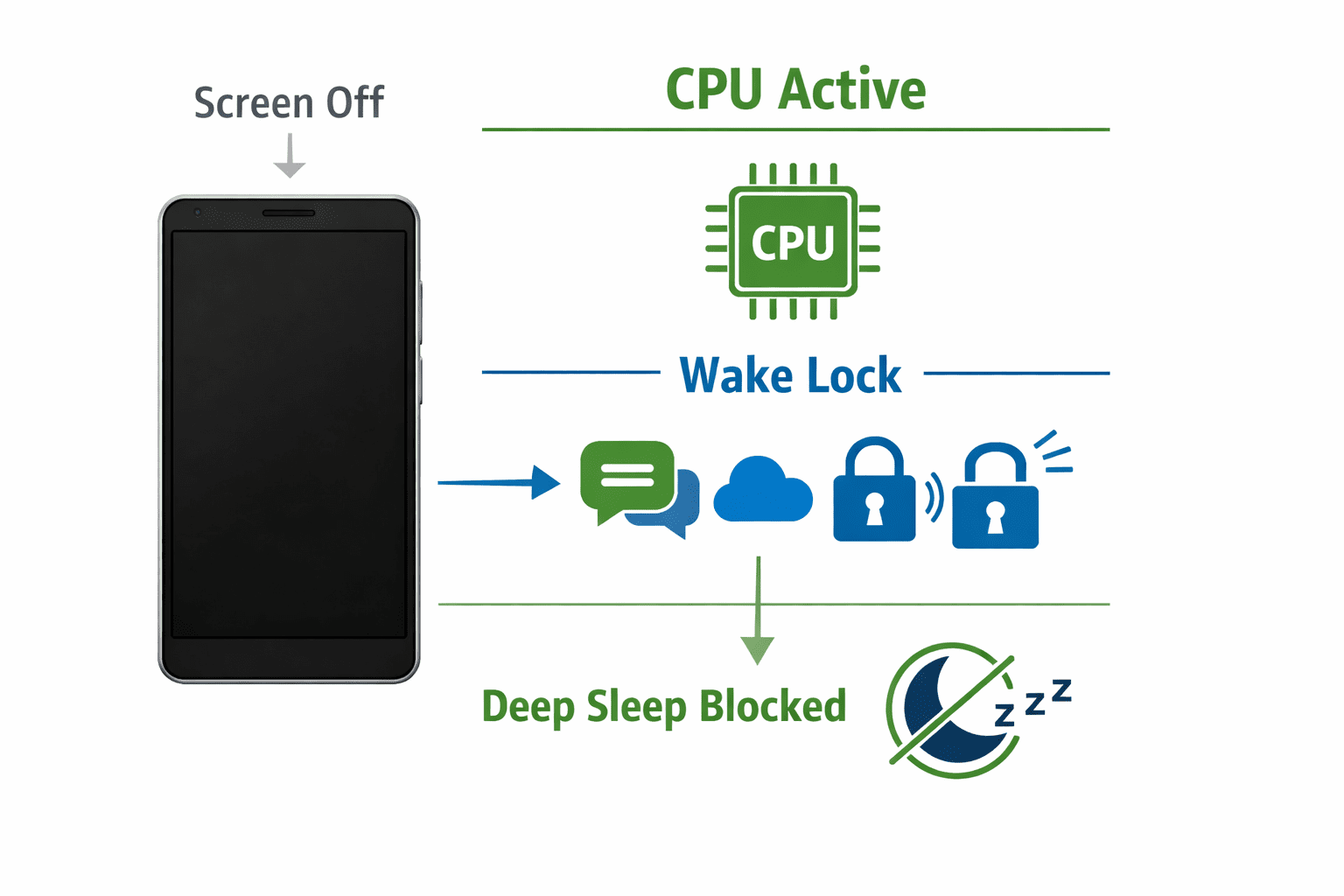
If your Android battery drains overnight while the phone is unused, the issue usually isn’t the battery itself. Instead, the problem often comes from wake locks and rogue background services that prevent the device from entering deep sleep.
These hidden processes silently keep the CPU active all night.
This guide explains how wake locks work, how rogue services cause overnight drain, and how to diagnose and fix the issue step-by-step.
Table of Contents
- What Causes Android Battery Drain Overnight
- Understanding Android Wake Locks
- How Rogue Services Drain Battery
- Signs Your Phone Is Not Entering Deep Sleep
- How to Diagnose Wake Lock Problems
- Step-by-Step Fix for Overnight Battery Drain
- Advanced Troubleshooting Methods
- Preventing Future Battery Drain Issues
- Key Takeaways
- FAQs
What Causes Android Battery Drain Overnight
When Android is idle, the system should enter Deep Sleep mode, drastically reducing CPU activity.
Normally:
- Idle battery drain: 1–2% per hour
- Overnight loss: 3–6%
If your device loses 20–50% overnight, something is preventing sleep.
Common causes include:
- Wake locks from apps
- Rogue background services
- Sync loops
- Misbehaving Google Play services
- Network reconnection loops
- Faulty widgets
- Malware or poorly coded apps
According to Android developer documentation, improper wake lock management is one of the top causes of excessive battery drain in background processes.
Understanding Android Wake Locks
What is a Wake Lock?
A Wake Lock is an Android mechanism that allows apps to keep the CPU awake even when the screen is off.
Apps use wake locks for legitimate reasons such as:
- Music playback
- Navigation
- Downloading files
- Notifications syncing
However, poorly coded apps may hold wake locks longer than necessary, preventing the device from sleeping.
Types of Wake Locks
Partial Wake Lock
- CPU stays active
- Screen remains off
- Most common battery drain cause
Full Wake Lock
- CPU + screen stay active
Screen Wake Lock
- Keeps screen on during activity
Partial wake locks are the biggest cause of Android battery draining overnight.
According to the official Android documentation, improper wake lock usage can prevent devices from entering deep sleep and significantly increase power consumption.
How Rogue Services Drain Battery
A rogue service is a background task that continuously runs or restarts.
These services may:
- Retry failed network requests
- Sync endlessly
- Attempt location updates
- Loop crash recovery processes
Common examples include:
- Messaging apps syncing repeatedly
- Google Play services location checks
- Cloud backup loops
- Email sync failures
These services repeatedly wake the CPU, creating a wake lock loop.
The result:
Your phone never enters deep sleep.
Signs Your Phone Is Not Entering Deep Sleep
Look for these warning signs:
1. High Overnight Battery Loss
- 20–60% battery lost overnight
2. Phone Feels Warm in Morning
Even when unused.
3. Battery Stats Show Background Activity
Check:
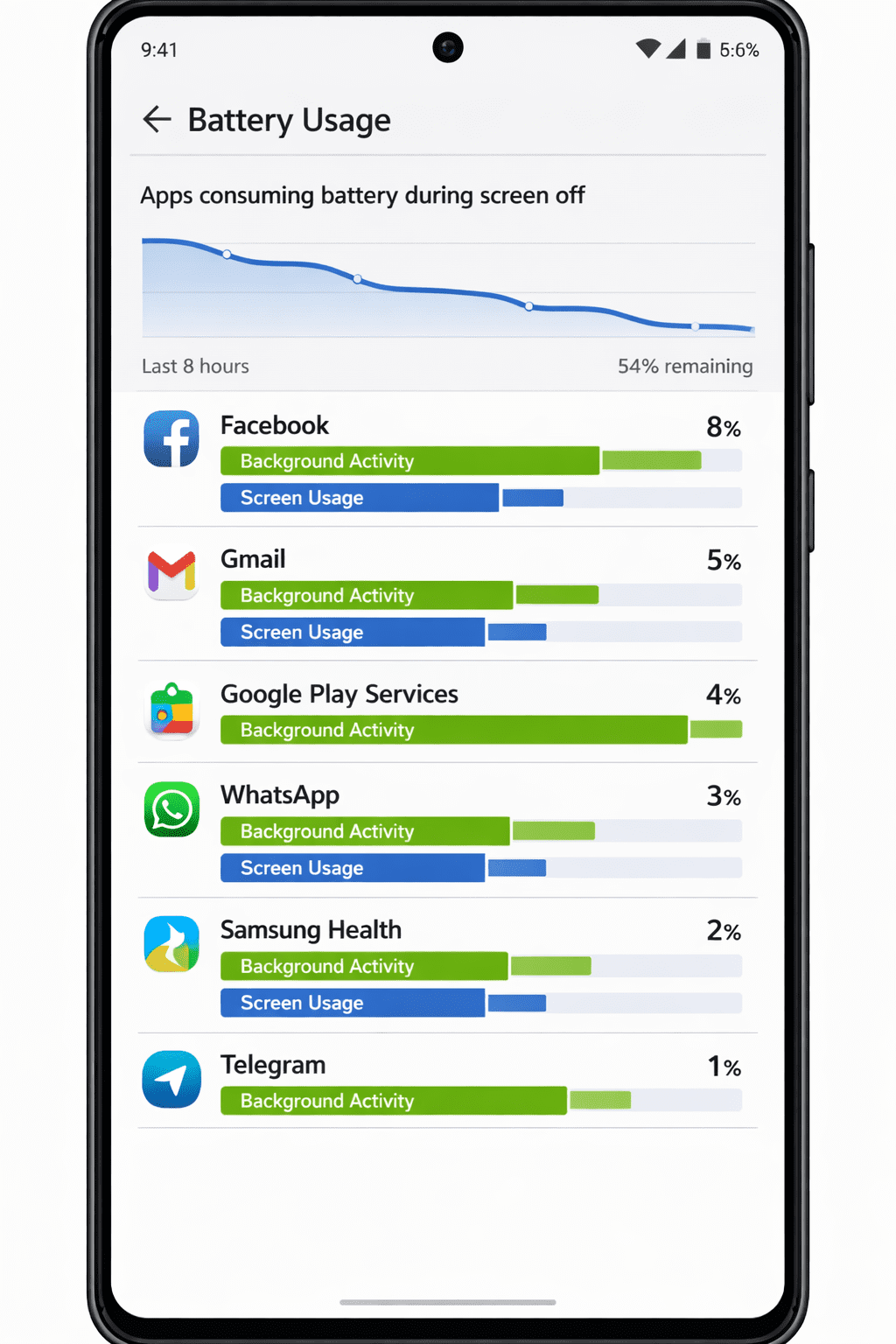
Settings → Battery → Battery Usage
Look for apps with high background usage.
4. Screen-Off Battery Drain
If screen-off drain is higher than screen-on drain, wake locks may be active.
How to Diagnose Wake Lock Problems
Diagnosing wake locks requires examining battery statistics and background services.
Step 1 — Check Android Battery Usage
Go to:
Settings → Battery → Battery Usage
Look for apps that show:
- High background activity
- Long CPU usage
Examples:
- Google Play Services
- Messaging apps
- VPN apps
Step 2 — Check Screen-Off Battery Drain
Some Android phones show:
Battery → Screen Off Usage
If apps consume battery while the screen is off, they may hold wake locks.
Step 3 — Use Developer Options
Enable Developer Options:
Settings → About Phone → Tap Build Number 7 times.
Then check:
Developer Options → Running Services
Look for services constantly restarting.
Step 4 — Use Advanced Diagnostic Apps
Third-party tools reveal wake lock statistics.
Examples include:
- AccuBattery
- BetterBatteryStats
- GSam Battery Monitor
These tools display:
- CPU wake time
- Partial wake locks
- App wake events
Step-by-Step Fix for Overnight Battery Drain
1. Restart Your Device
Temporary background processes may be stuck.
Restarting clears:
- System services
- memory leaks
- rogue threads
Restarting alone fixes many overnight drain issues.
2. Identify Problem Apps
Open:
Settings → Battery → Usage
Look for apps using battery while idle.
Common culprits:
- Snapchat
- VPN apps
- poorly coded games
If an app shows high background usage, it may hold wake locks.
3. Restrict Background Activity
Android allows limiting background usage.
Steps:
- Open Settings
- Tap Apps
- Select problematic app
- Tap Battery
- Choose Restricted
This prevents the app from running uncontrolled services.
4. Disable Unnecessary Sync
Continuous syncing causes wake locks.
Check:
Settings → Accounts → Sync
Disable sync for:
- rarely used apps
- backup apps
- unused Google services
5. Update Google Play Services
Outdated Play Services sometimes cause wake lock loops.
Update from:
Google Play Store → Google Play Services.
6. Disable Location Scanning
Location scanning wakes the device periodically.
Go to:
Settings → Location → Location Services
Disable:
- WiFi scanning
- Bluetooth scanning
7. Clear Problem App Cache
Corrupted cache can trigger background loops.
Steps:
Settings → Apps → Storage → Clear Cache
Do NOT clear data unless necessary.
Advanced Troubleshooting Methods
If the battery drain continues, deeper analysis is required.
Use Safe Mode
Safe Mode disables third-party apps.
Steps:
- Hold power button
- Long press Power Off
- Select Safe Mode
If battery drain disappears in Safe Mode, a third-party app is responsible.
Check Network Loops
Network reconnection loops cause battery drain.
Symptoms:
- phone reconnecting to WiFi repeatedly
- unstable VPN connection
- roaming signal issues
Solutions:
- reset network settings
- disable unstable VPN
Reset App Preferences
This restores default app behaviors.
Settings → System → Reset → Reset App Preferences.
Factory Reset (Last Resort)
If software corruption exists, factory reset may be required.
Always backup data first.
Preventing Future Battery Drain Issues
To prevent overnight battery drain:
Install Apps Carefully
Avoid apps with poor optimization.
Monitor Battery Usage Weekly
Check battery usage stats regularly.
Keep Android Updated
System updates fix battery optimization bugs.
Limit Widgets
Widgets constantly refresh data.
Avoid Task Killers
They can create restart loops, worsening battery drain.
Use Adaptive Battery
Android AI learns app usage patterns.
Battery research from Battery University shows that background processes and network activity are among the most common causes of smartphone battery drain.
Key Takeaways
- Overnight battery loss above 10% is abnormal.
- Wake locks keep the CPU active even when the screen is off.
- Rogue services repeatedly wake the device, causing battery drain.
- Battery usage statistics help identify problematic apps.
- Restricting background activity and disabling unnecessary sync fixes most cases.
- Advanced diagnostics may require Safe Mode testing.
FAQs
Why does my Android battery drain overnight?
Most overnight battery drain occurs when apps hold wake locks, preventing the phone from entering deep sleep.
How much battery should Android lose overnight?
Typically 3–6% overnight while idle. Anything above 10–15% indicates a problem.
What apps cause wake locks?
Common offenders include:
- social media apps
- VPN services
- messaging apps
- poorly optimized games
Can Google Play services drain battery overnight?
Yes. Bugs or sync loops in Google Play Services may cause continuous background activity.
How do I check wake locks on Android?
Use tools like:
- AccuBattery
- BetterBatteryStats
- GSam Battery Monitor
They display CPU wake time and partial wake locks.
Does Safe Mode help diagnose battery drain?
Yes. Safe Mode disables third-party apps, helping identify whether installed apps are causing the issue.
Can malware cause battery drain?
Yes. Malware often runs hidden background services that constantly wake the CPU.
Conclusion
Android battery draining overnight is rarely caused by the battery itself. In most cases, the problem lies with wake locks or rogue background services that prevent the device from entering deep sleep.
By carefully checking battery statistics, identifying problematic apps, and restricting unnecessary background activity, most users can resolve the issue quickly.
If the drain continues after applying these fixes, deeper diagnostics using Safe Mode or battery monitoring tools can reveal the root cause.
Maintaining good app hygiene and monitoring battery usage regularly ensures your Android device stays efficient and ready for the day ahead.
Schema-Ready FAQ Section
Q1: Why is my Android battery draining overnight?
A: Apps holding wake locks or running rogue background services prevent the phone from entering deep sleep, causing overnight battery drain.
Q2: How much battery drain overnight is normal?
A: Most Android devices lose only 3–6% overnight while idle.
Q3: What is a wake lock in Android?
A: A wake lock allows an app to keep the CPU active even when the screen is off.
Q4: How do I identify apps draining battery in background?
A: Check Settings → Battery → Battery Usage to see apps with high background activity.
Q5: Can Safe Mode help diagnose battery drain?
A: Yes. Safe Mode disables third-party apps, helping determine if installed apps are causing the issue.
Q6: Do VPN apps cause battery drain?
A: Some VPN apps repeatedly reconnect to servers, creating background activity that drains battery.
Q7: Should I factory reset my phone to fix battery drain?
A: Factory reset should be used only as a last resort after troubleshooting apps and services.