
Android System UI Not Responding — What It Means Internally
Introduction
You unlock your Android phone and suddenly a message appears:
“System UI isn’t responding.”
Your screen freezes. The navigation bar stops working. Notifications won’t open. For many users, this error feels random and confusing.The Android System UI Not Responding error occurs when the SystemUI process freezes due to low memory, corrupted cache, or buggy apps. Restarting the phone, clearing cache, or booting into Safe Mode usually fixes the issue.
But internally, this message reveals something very specific about how Android works.
The System UI process controls the visual layer of Android—the status bar, notifications, navigation buttons, lock screen, quick settings, and more. When this component crashes or stalls, the operating system cannot render critical interface elements.
According to Android developer documentation, System UI failures often occur when the UI thread becomes blocked for more than 5 seconds, triggering Android’s Application Not Responding (ANR) mechanism.
In this guide, we will explore:
- What Android System UI Not Responding means internally
- The technical causes behind the error
- How Android manages UI processes
- Practical fixes that actually work
- Preventive measures to avoid future crashes
By the end, you will understand both the root cause and the solution.
Table of Contents
- What Is Android System UI
- What “System UI Not Responding” Means Internally
- Common Causes of the Error
- How Android Handles UI Processes
- Signs the System UI Process Is Failing
- Step-by-Step Fixes for System UI Not Responding
- Advanced Troubleshooting Methods
- Preventing System UI Crashes
- Key Takeaways
- FAQs
Android System UI Not Responding — What It Means Internally
The System UI is a core Android component responsible for displaying system interface elements.
Unlike regular apps, System UI runs as a system-level process inside the Android framework.
Key functions of Android System UI
- Status bar icons (battery, network, time)
- Notification panel
- Quick settings toggles
- Navigation bar buttons
- Lock screen interface
- Screenshot interface
- Volume panel
- System dialogs
Essentially, System UI is the visual controller of Android.
If this process stops responding, the device may still run internally, but the user cannot interact properly with the interface.
What “System UI Not Responding” Means Internally
Internally, the error occurs when the SystemUI process becomes blocked or crashes.
Android monitors app responsiveness using the ANR (Application Not Responding) watchdog.
Android ANR Trigger
If the UI thread does not respond within:
5 seconds → Android triggers ANR
For System UI, this is critical because it controls the device interface.
According to the official Android documentation, the system displays an Application Not Responding (ANR) message when the main UI thread of an application fails to process input events within a few seconds. This mechanism helps Android detect frozen interfaces and allows the system to restart or close the affected process.
Internal sequence of events
- System UI thread becomes blocked
- UI rendering stops
- Android detects delayed response
- ANR watchdog activates
- System displays: “System UI isn’t responding”
At this point Android provides two options:
- Close app
- Wait
However, since System UI is a core process, closing it forces Android to restart the UI layer.
Common Causes of the Error
Several internal factors can cause the System UI process to freeze.
1. Low RAM Memory
When Android runs out of memory, the system struggles to allocate resources to UI rendering.
Symptoms include:
- UI lag
- frozen navigation bar
- delayed notifications
Devices with less than 4GB RAM experience this more frequently.
2. Corrupted System Cache
Android stores temporary system files in the cache partition.
If this cache becomes corrupted, the System UI process may fail to load correctly.
Common after:
- OS updates
- app crashes
- incomplete installations
3. Buggy Third-Party Apps
Apps that manipulate system overlays or UI elements can interfere with System UI.
Examples include:
- screen filter apps
- floating widgets
- custom launchers
- aggressive RAM cleaners
These apps may overload the UI thread.
4. Faulty Android Updates
Sometimes a new system update introduces bugs affecting System UI.
Google reported that UI-related crashes accounted for nearly 30% of Android bug reports after certain major updates.
These bugs often appear immediately after installing an update.
5. Launcher Conflicts
Custom launchers replace Android’s home interface.
If the launcher fails to interact correctly with System UI services, it can trigger crashes.
Popular launchers involved in such issues include:
- Nova Launcher
- Apex Launcher
- third-party theme launchers
How Android Handles UI Processes
Android uses a multi-process architecture.
Each app runs in its own sandbox environment.
However, System UI runs as a privileged system service.
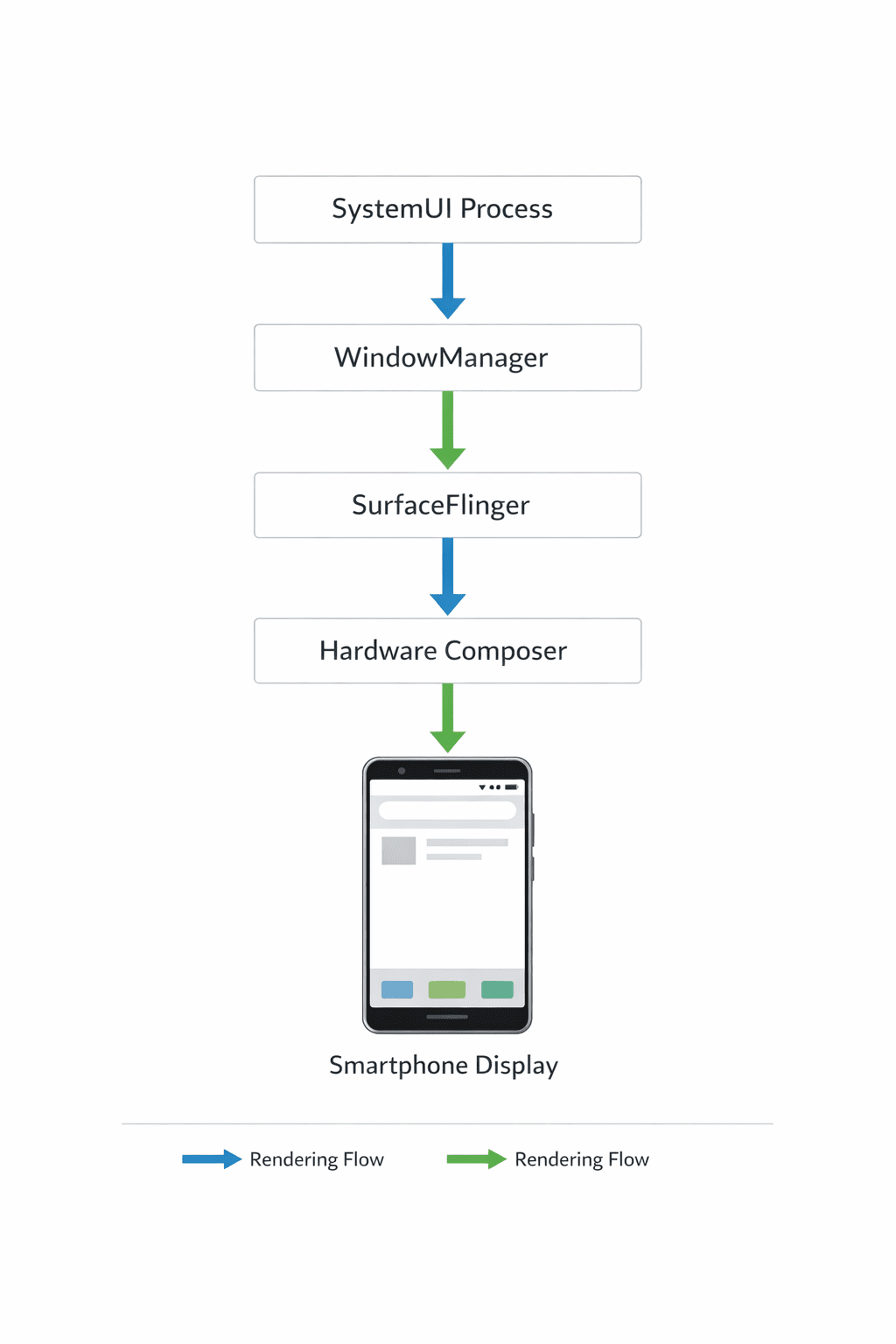
Core architecture components
Android UI pipeline involves:
- SurfaceFlinger
- WindowManager
- SystemUI process
- Hardware composer
These layers work together to render every visible element.
If the SystemUI process stalls, the entire rendering chain collapses.
Signs the System UI Process Is Failing
Before the full error appears, users often notice warning signs.
Early symptoms
- status bar disappearing
- quick settings not opening
- notification shade freezing
- navigation buttons unresponsive
- lock screen lag
If these appear repeatedly, the System UI process may be unstable.
Step-by-Step Fixes for System UI Not Responding
Below are the most effective fixes.
Follow them in order.
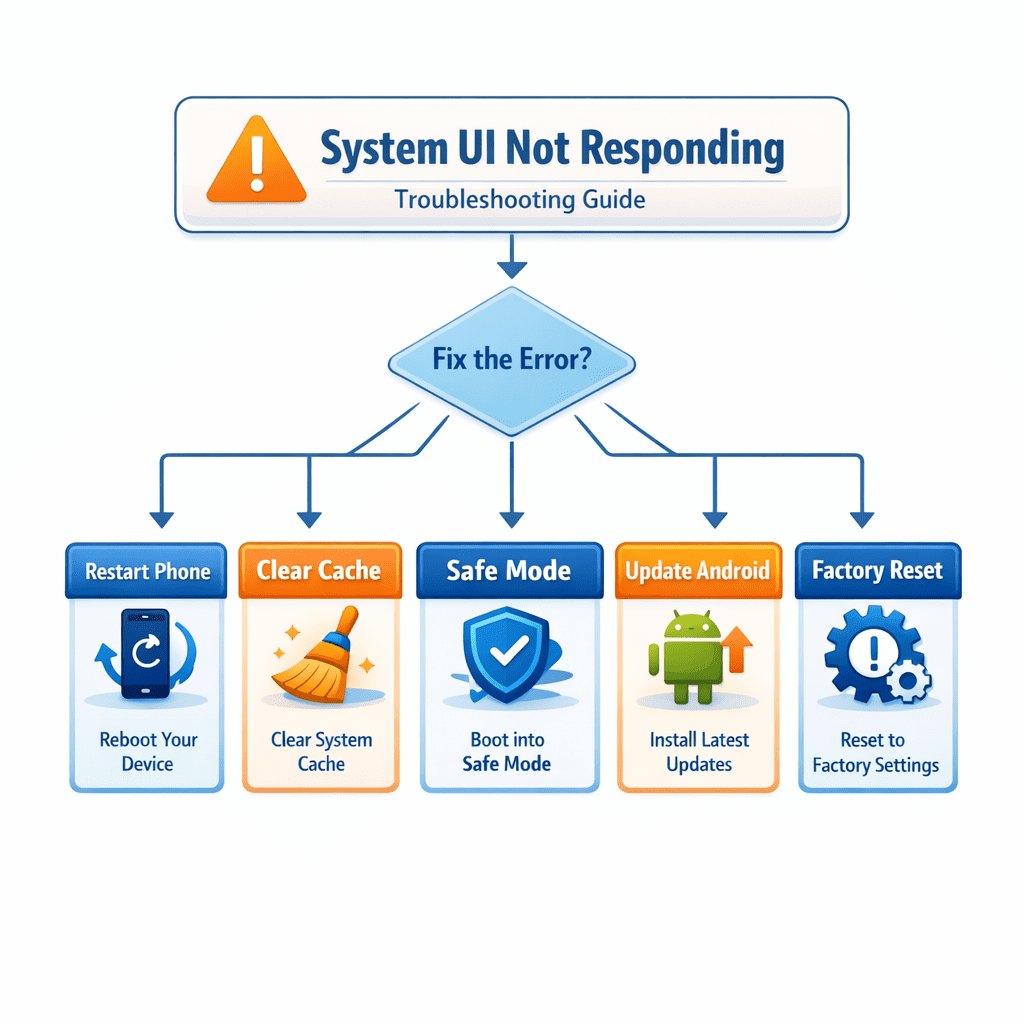
1. Restart the Phone
A simple reboot clears memory and restarts the System UI service.
Steps
- Hold the Power button
- Tap Restart
- Wait for device reboot
This fixes temporary memory conflicts.
2. Clear System UI Cache
Some devices allow clearing cache for System UI.
Steps
- Open Settings
- Tap Apps
- Select Show system apps
- Find System UI
- Tap Storage
- Tap Clear Cache
Do not clear system data unless necessary.
3. Boot Into Safe Mode
Safe Mode disables third-party apps.
If the problem disappears in Safe Mode, an app is responsible.
Steps
- Hold the Power button
- Press and hold Power Off
- Tap Safe Mode
Now test the phone.
If the issue stops, uninstall recent apps.
4. Update Android System
System UI bugs are often fixed in updates.
Steps
- Open Settings
- Tap System
- Tap Software Update
- Install available updates
Manufacturers regularly release UI patches.
5. Reset App Preferences
Misconfigured app permissions can affect system services.
Steps
- Open Settings
- Tap Apps
- Tap Reset App Preferences
This restores default behavior.
Google also recommends basic troubleshooting steps such as restarting the device, checking for Android updates, and removing problematic apps when system components become unstable. These methods help reset system services and resolve temporary software conflicts.
6. Wipe Cache Partition (Advanced)
This clears the system cache without deleting personal data.
Steps
- Turn off phone
- Enter Recovery Mode
- Select Wipe Cache Partition
- Reboot device
This is particularly helpful after OS updates.
Advanced Troubleshooting Methods
If the issue persists, deeper fixes may be needed.
Factory Reset
This completely rebuilds the Android environment.
Steps:
- Backup data
- Open Settings
- Tap System
- Select Reset
- Tap Factory Reset
Use this only if all other methods fail.
Check for Hardware Overheating
Overheating can throttle CPU performance and freeze UI threads.
Typical temperature ranges:
- Normal: 30–40°C
- Warning: 45°C+
If overheating occurs frequently, investigate background apps.
Preventing System UI Crashes
You can reduce the chances of this error occurring again.
Best practices
- Avoid aggressive RAM cleaner apps
- Limit heavy widgets
- Keep Android updated
- Avoid installing unknown launchers
- Restart phone weekly
- Keep at least 2GB free storage
Google recommends maintaining 10–15% free storage for smooth Android operation.
Key Takeaways
- System UI controls the entire Android interface
- The error occurs when the UI thread stops responding
- Android triggers an ANR after 5 seconds of UI freeze
- Common causes include low RAM, buggy apps, corrupted cache
- Safe Mode helps identify problematic third-party apps
- Clearing cache and system updates resolve most cases
- Factory reset should be used only as a last resort
FAQs
Why does Android say System UI not responding?
The error appears when the SystemUI process becomes unresponsive due to memory issues, software bugs, or conflicts with third-party apps.
Is System UI a virus?
No. System UI is a legitimate Android system process responsible for displaying interface elements.
Can I uninstall System UI?
No. It is a core Android system component and cannot be removed.
Does factory reset fix System UI errors?
Yes, factory reset removes corrupted data and restores the operating system to its original state.
What apps cause System UI crashes?
Apps that modify system overlays such as screen filters, theme engines, and floating widget apps can sometimes trigger UI crashes.
How do I restart System UI?
Restarting the phone automatically restarts the System UI process.
Conclusion
The Android System UI Not Responding error may appear alarming, but understanding what happens internally makes it easier to solve.
At its core, the issue occurs when Android’s UI rendering thread becomes blocked, preventing the system from updating interface elements. The operating system detects this delay and triggers an ANR warning.
Most cases are caused by:
- temporary memory overload
- corrupted cache
- problematic third-party apps
Fortunately, the majority of users can fix the issue using simple methods like restarting the device, clearing cache, or booting into Safe Mode.
Maintaining system updates and avoiding intrusive apps also significantly reduces the chances of future crashes.
Understanding how Android manages the UI layer not only helps fix this problem—but also improves overall device stability.
Schema-Ready FAQ List
What does Android System UI not responding mean?
The Android System UI not responding error appears when the SystemUI process stops responding to Android’s interface requests. This usually happens when the UI thread becomes blocked due to memory issues, system bugs, or conflicts with third-party apps. When Android detects that the interface has not responded for about 5 seconds, it triggers an Application Not Responding (ANR) warning and displays the error message.
How do I fix System UI not responding error on Android?
You can fix the Android System UI not responding error using these steps:
- Restart your phone to reset the UI process.
- Clear System UI cache from Settings → Apps → System UI → Storage → Clear Cache.
- Boot the device in Safe Mode to identify problematic apps.
- Update the Android system to install bug fixes.
- Reset app preferences if permissions or defaults are corrupted.
- As a last resort, perform a factory reset.
Most users resolve the issue after restarting the phone or clearing cache.
Can third party apps cause System UI crashes?
Yes. Some third-party apps can interfere with Android’s interface services and cause System UI crashes. Apps that modify system overlays or UI elements are the most common culprits, including:
- screen filter apps
- floating widget apps
- custom launchers
- aggressive RAM cleaner apps
Booting your device in Safe Mode can help identify if a third-party app is responsible.
Is System UI a system process in Android?
Yes. System UI is a core Android system process that manages the device’s visual interface. It controls elements such as the status bar, navigation buttons, lock screen, notifications, quick settings panel, and system dialogs. Because it is part of the Android framework, it cannot be uninstalled or disabled like normal apps.
Does clearing cache fix System UI errors?
Yes, clearing cache can fix many System UI errors. Android stores temporary system files in cache partitions. If these files become corrupted after updates or crashes, they can cause System UI to malfunction. Clearing the cache removes these temporary files and allows Android to rebuild them correctly.
Why does my Android navigation bar stop responding?
The navigation bar may stop responding if the System UI process becomes overloaded or crashes. This can happen due to low RAM, buggy apps, corrupted system cache, or software bugs introduced in updates. Restarting the device or clearing System UI cache usually restores navigation functionality.