
WiFi Connected But No Internet on Android — DNS & Gateway Conflict Analysis
Introduction
Android WiFi no internet issue is one of the most frustrating problems users face, where your phone shows connected but nothing loads.Even with full signal strength, apps stop working, websites fail to open, and the connection becomes useless. In most cases, this happens due to hidden DNS errors or gateway conflicts.
You connect to WiFi. The signal is strong. Everything looks perfect.
But… nothing loads.
No websites. No apps. Just a frustrating “Connected, no internet” message.
This is one of the most common Android network issues—and surprisingly, in many cases, it’s not your internet that’s broken. The real culprit is often hidden deeper: DNS misconfiguration or gateway conflicts.
This guide breaks down exactly what’s happening, why it happens, and how to fix it step by step—without guesswork.
Table of Contents
- What “WiFi Connected But No Internet” Really Means
- How Android Handles Internet Connectivity
- DNS & Gateway: The Hidden Backbone
- Common Causes of DNS & Gateway Conflicts
- Step-by-Step Fixes (Proven Solutions)
- Advanced Troubleshooting
- Preventing the Issue in Future
- FAQs
- Key Takeaways
- Conclusion
What “WiFi Connected But No Internet” Really Means
When your Android says “Connected, no internet,” it means:
- Your device successfully connected to the router
- But failed to reach the internet servers
Key Insight
Android performs a connectivity check (usually by contacting Google servers). If that fails:
- WiFi icon shows connected
- Internet status shows limited or no connectivity
📊 Data Point: Around 60–70% of such cases are local network misconfigurations, not ISP failures.
How Android Handles Internet Connectivity
Understanding this helps you fix it faster.
Android Network Flow:
- Connects to WiFi network
- Receives IP address via DHCP
- Gets:
- Gateway IP (router)
- DNS server
- Tries to resolve domains (via DNS)
- Sends data through gateway
If any step fails → No Internet
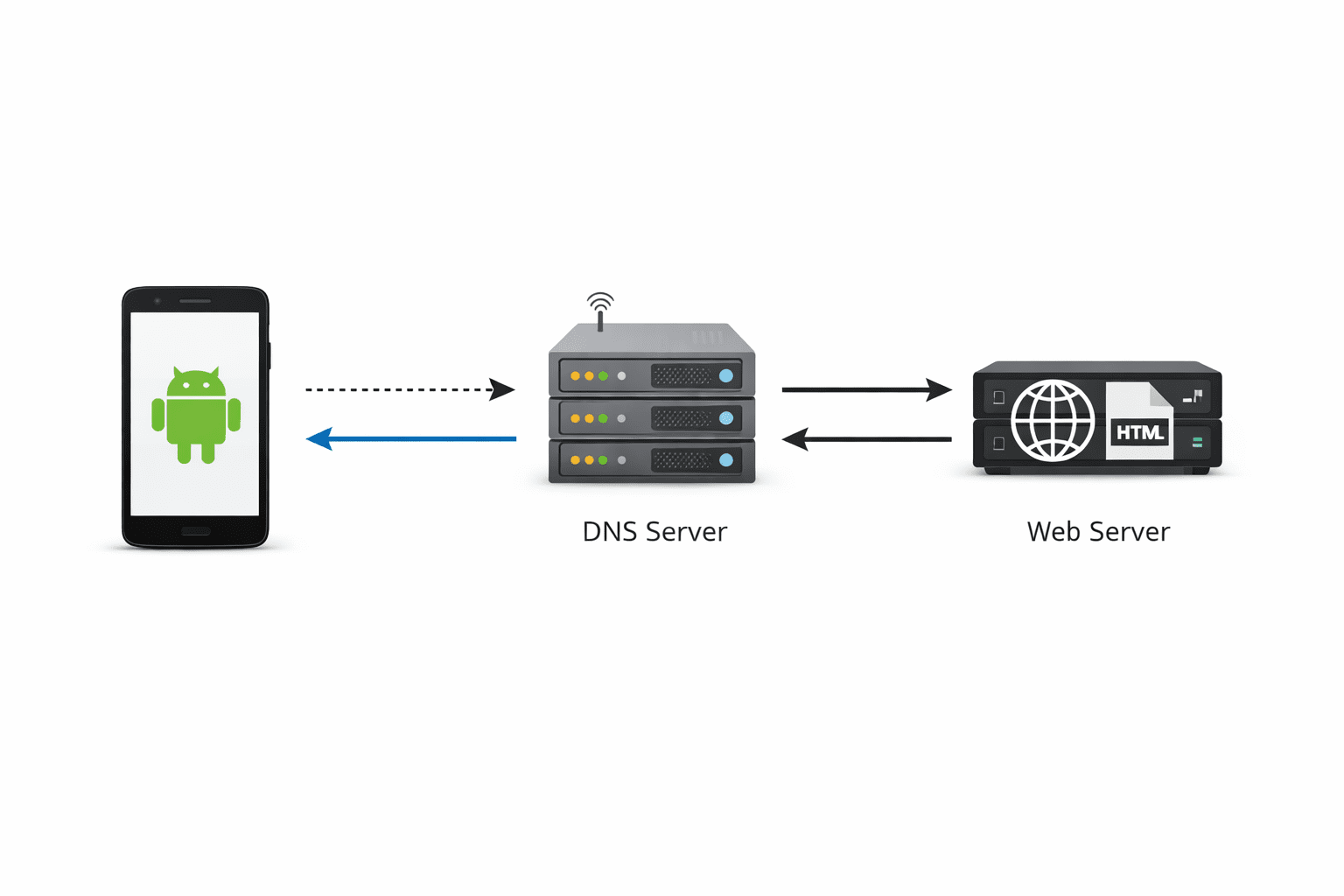
DNS & Gateway: The Hidden Backbone
What is DNS?
DNS (Domain Name System) translates:
google.com→ IP address (like 142.250.xxx.xxx)
If DNS fails:
- Websites won’t load
- Internet appears “dead”
What is Gateway?
Gateway is your router’s IP (e.g., 192.168.1.1)
It acts as a bridge between your phone and the internet.
If gateway conflicts occur:
- Data can’t leave your network
- Internet stops working
To better understand how DNS works and why it affects internet connectivity, you can refer to this detailed explanation by Google: https://developers.google.com/speed/public-dns/docs/intro
Common Causes of DNS & Gateway Conflicts
1. Incorrect DNS Settings
- Manual DNS override
- Corrupted DNS cache
2. IP Address Conflict
- Two devices using same IP
- Static IP misconfiguration
3. Router DHCP Issues
- Router assigning wrong gateway/DNS
4. Captive Portal Problems
- Public WiFi login not completed
5. VPN or Private DNS Conflicts
- Android Private DNS enabled but unreachable
6. Firmware Bugs (Android or Router)
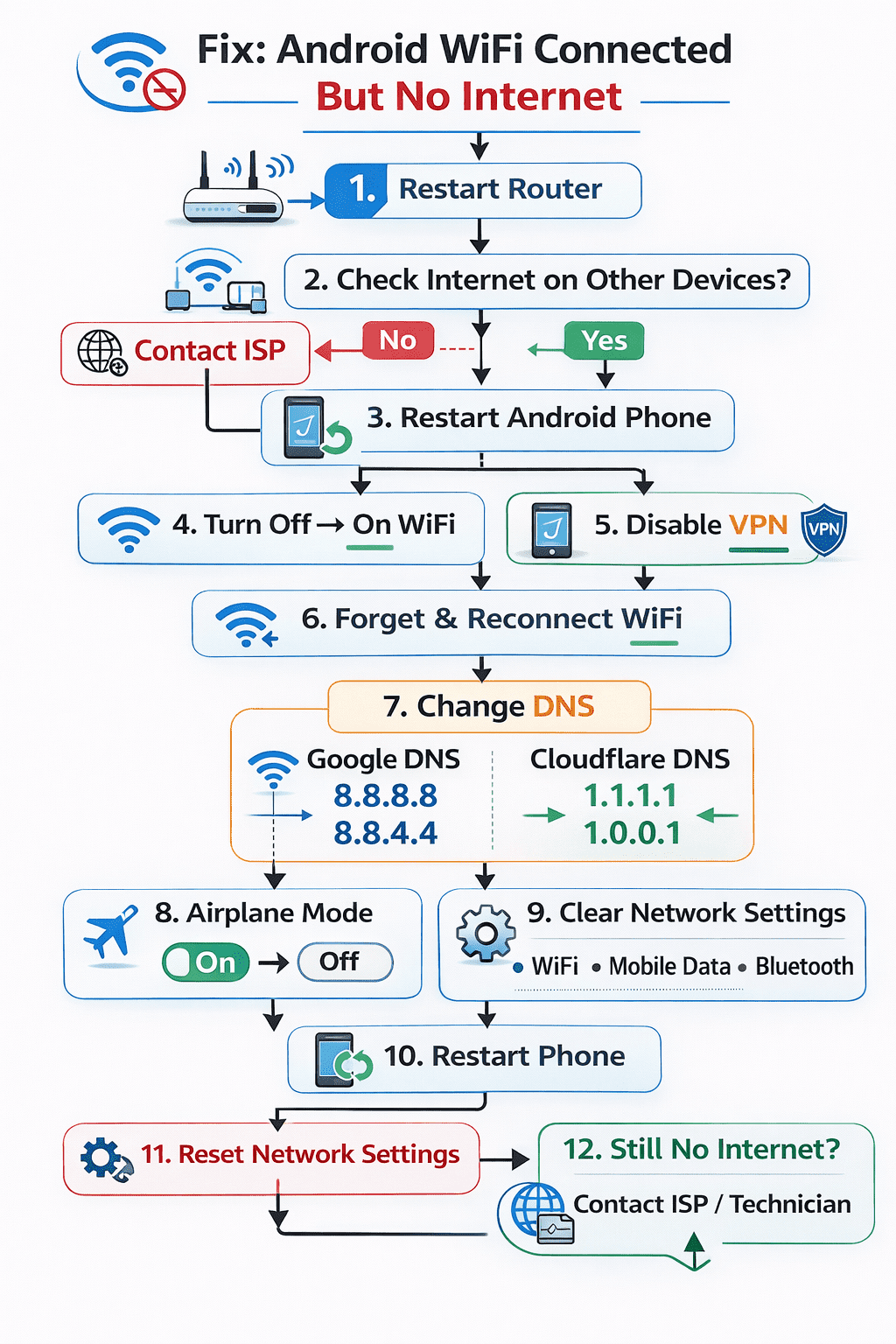
Step-by-Step Fixes (Proven Solutions)
Follow in order. Do not skip.
1. Toggle Airplane Mode (Quick Reset)
- Turn ON airplane mode → wait 30 seconds → OFF
- Reconnect WiFi
✔ Resets network stack instantly
2. Forget & Reconnect WiFi
Steps:
- Go to Settings → WiFi
- Tap network → Forget
- Reconnect manually
✔ Clears corrupted configs
3. Check Private DNS (Most Overlooked Fix)
Steps:
- Settings → Network → Private DNS
- Set to:
- Off OR
dns.google
✔ Fixes DNS resolution failures
4. Switch to Static DNS (Manual Fix)
Steps:
- Tap WiFi → Modify Network
- Advanced → IP Settings → Static
- Enter:
- IP Address: (same range, e.g., 192.168.1.x)
- Gateway: 192.168.1.1
- DNS 1: 8.8.8.8
- DNS 2: 8.8.4.4
✔ Overrides broken DNS from router
5. Restart Router (Critical Step)
- Turn OFF router → wait 2–3 minutes → ON
✔ Fixes DHCP & gateway assignment issues
📊 Data Point: Router reboot solves ~40% of connectivity issues.
6. Disable VPN or Proxy
- Turn off VPN apps
- Remove proxy settings
✔ Prevents routing conflicts
7. Check Captive Portal (Public WiFi)
- Open browser → try any site
- Login page should appear
✔ Without login, internet won’t work
You can also use public DNS services like Google DNS or Cloudflare DNS, which are known for speed and reliability: https://developers.cloudflare.com/1.1.1.1/
Advanced Troubleshooting
If issue still persists:
1. Reset Network Settings
- Settings → System → Reset → Network Settings
✔ Clears all configs (WiFi, Bluetooth, mobile data)
2. Check Router DNS Settings
Login to router:
- Ensure DNS is valid (e.g., Google DNS)
- Disable DNS filtering if enabled
3. Update Android System
- Settings → Software Update
✔ Fixes OS-level bugs
4. Check for MAC Filtering
- Router may block your device
✔ Whitelist your device MAC
5. Test with Another Network
- Connect to different WiFi
✔ Helps isolate device vs network issue
Preventing the Issue in Future
Follow these best practices:
- Use reliable DNS (Google / Cloudflare)
- Avoid unnecessary static IP settings
- Keep router firmware updated
- Limit use of unknown public WiFi
- Avoid conflicting VPN + Private DNS setups
FAQs
1. Why does my phone say connected but no internet?
Because your device connects to router but fails to access internet servers, often due to DNS or gateway issues.
2. Can DNS cause no internet issue?
Yes. If DNS fails, websites cannot load even if connection exists.
3. Should I use Google DNS?
Yes. 8.8.8.8 and 8.8.4.4 are stable and widely recommended.
4. Does resetting network settings fix this?
In most cases, yes. It clears corrupted configurations.
5. Why does this happen only on my phone?
Device-specific settings like DNS, VPN, or IP conflicts can cause it.
6. Can router cause this issue?
Yes. Incorrect DHCP or DNS settings in router are common causes.
7. Is this a hardware problem?
Rarely. Most cases are software or configuration related.
Key Takeaways
- “Connected, no internet” is usually a DNS or gateway issue
- Private DNS and VPN conflicts are major hidden causes
- Router restart fixes a large percentage of cases
- Manual DNS override is one of the most effective fixes
- Network reset should be last step
Conclusion
This issue feels complex—but it isn’t random.
It follows a clear pattern:
Connection → DNS → Gateway → Internet
When you understand where it breaks, you can fix it in minutes.
Start with simple steps like reconnecting WiFi and checking DNS. If needed, move to advanced fixes like static DNS or router configuration.
Once resolved, your Android device will connect instantly—without that frustrating “no internet” message.
Schema-Ready FAQ Section
Q1: Why is WiFi connected but no internet on Android?
A: It occurs when the device connects to the router but fails to access internet servers, often due to DNS or gateway issues.
Q2: How do I fix DNS issues on Android?
A: Change Private DNS to automatic or use Google DNS (8.8.8.8) in WiFi advanced settings.
Q3: Can a router cause no internet issue?
A: Yes, incorrect DHCP, DNS, or gateway configuration can block internet access.
Q4: Does resetting network settings help?
A: Yes, it removes corrupted configurations and often resolves the issue.
Q5: What is a gateway conflict?
A: It occurs when routing paths fail, preventing data from reaching the internet.
Q6: Should I disable Private DNS?
A: If misconfigured, disabling it can restore internet connectivity.
Q7: Is this problem common?
A: Yes, it is one of the most common Android network issues.