
App Not Installed Error — Signature Mismatch & Package Conflict Explained
Introduction
App Not Installed Error Fix is one of the most searched Android issues, especially when users face signature mismatch or package conflict during APK installation.
You tap install… and suddenly — “App Not Installed.”
No explanation. No details. Just a frustrating dead end.
This error is extremely common when installing apps outside the Play Store, and in most cases, the real cause is either a signature mismatch or a package conflict. The problem? Android doesn’t clearly tell you what went wrong.
In this guide, you’ll learn:
- Exact step-by-step solutions to fix it permanently
- Why this error happens
- What signature mismatch and package conflict actually mean
Table of Contents
- What Is “App Not Installed” Error
- What Is Signature Mismatch
- What Is Package Conflict
- Common Causes Behind This Error
- How to Fix Signature Mismatch
- How to Fix Package Conflict
- Advanced Fixes (For Persistent Issues)
- Prevent This Error in Future
- FAQs
- Key Takeaways
- Conclusion
What Is “App Not Installed” Error
The “App Not Installed” error occurs when Android fails to install an APK file due to conflicts with existing data, permissions, or app signatures.
Key Fact:
According to Android developer documentation, APK signature verification is mandatory — if it fails, installation is blocked completely.
This is why even a small mismatch can stop installation.
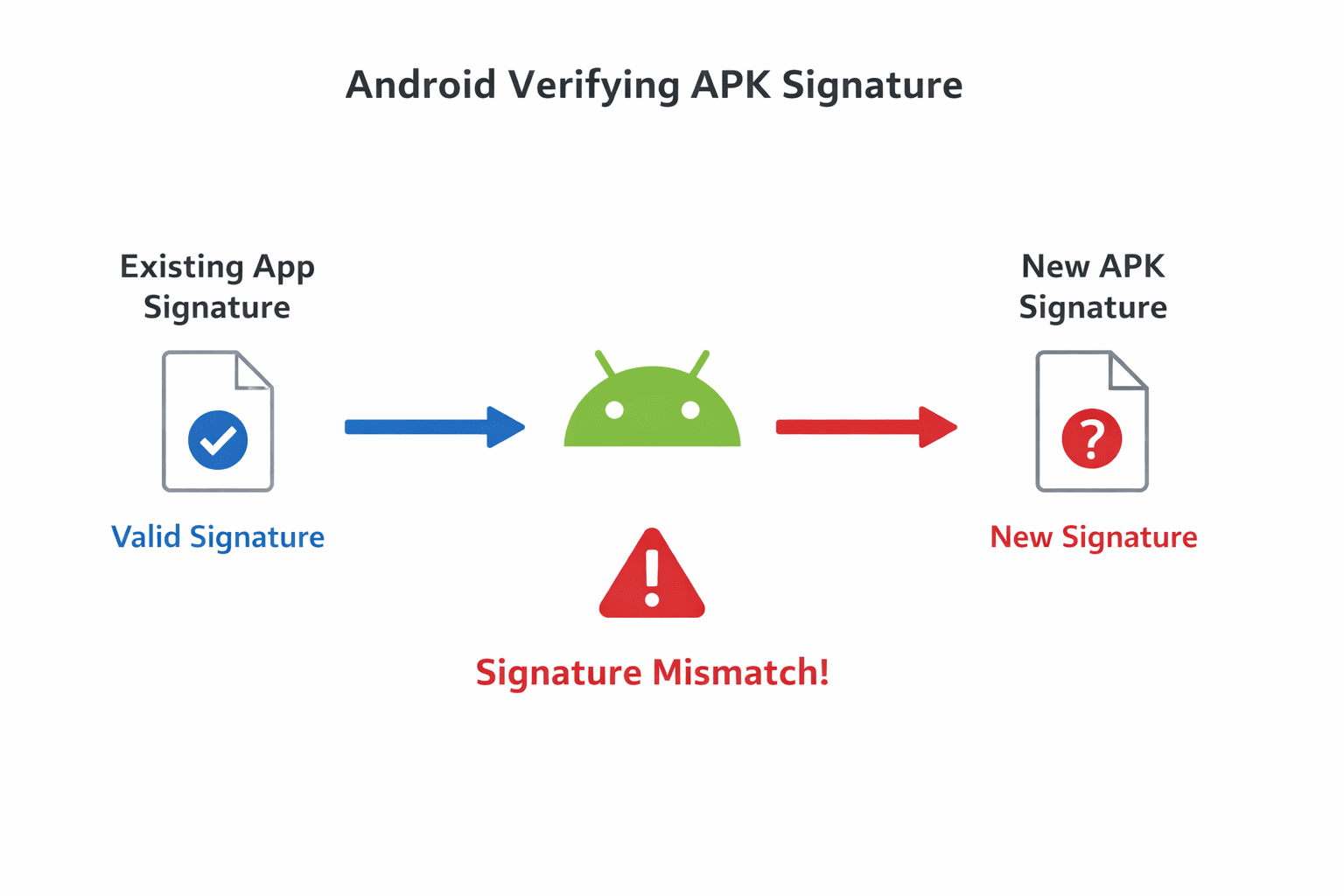
What Is Signature Mismatch
Every Android app is signed with a digital certificate (signature) by its developer.
Why it matters:
- Ensures app authenticity
- Prevents malicious updates
- Protects user data
Signature mismatch happens when:
- You try to install an APK signed with a different key than the existing app
Example:
- Installed app → from Play Store (official signature)
- New APK → from third-party site (different signature)
→ Result: Installation fails
Android requires all apps to be signed for security, as explained in the official Android documentation.
What Is Package Conflict
A package conflict happens when Android detects an issue with:
- App package name
- Existing installed version
- System restrictions
Common scenarios:
- Same app already installed but different version
- Leftover data from previous installation
- System app vs user-installed app conflict
Common Causes Behind This Error
Here are the real reasons behind “App Not Installed”:
1. Signature mismatch
2. App already installed (different version)
3. Corrupted APK file
4. Insufficient storage
5. Split APK installation issues
6. Installing over system apps
7. Wrong CPU architecture (ARM vs x86)
How to Fix Signature Mismatch
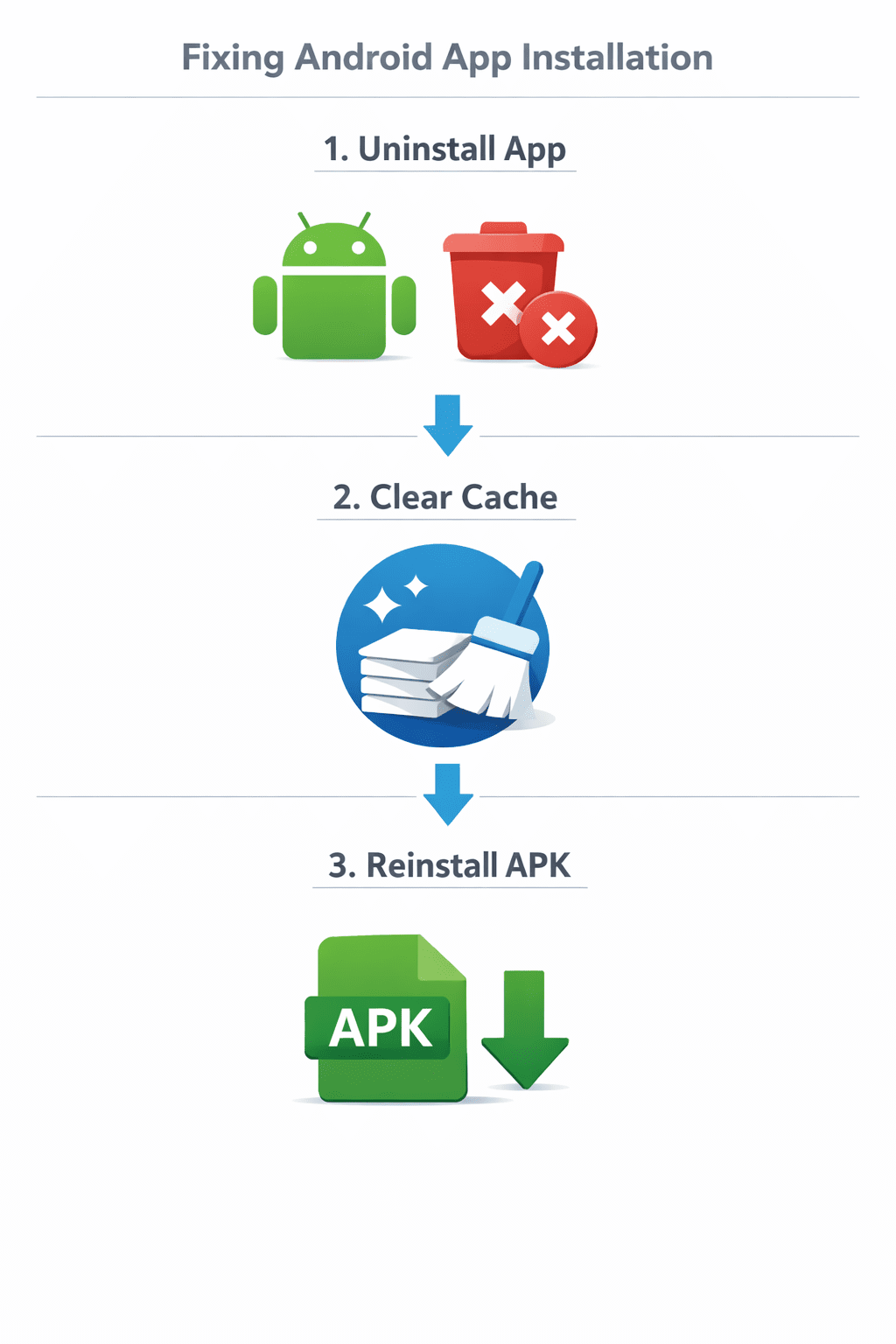
✅ Method 1: Uninstall Existing App
This is the most effective fix.
Steps:
- Go to Settings → Apps
- Find the app
- Tap Uninstall
- Install APK again
⚠️ Note: This removes app data.
✅ Method 2: Use Same Source APK
Always install updates from:
- Same website
- Same developer source
This ensures matching signatures.
✅ Method 3: Backup & Reinstall
If data is important:
- Backup using:
- Google backup
- Third-party backup apps
- Uninstall app
- Install new APK
- Restore data
To avoid signature conflicts, always download APKs from trusted sources like APKMirror.
How to Fix Package Conflict
✅ Method 1: Clear Installer Cache
Steps:
- Go to Settings → Apps → Package Installer
- Tap Storage
- Clear Cache
✅ Method 2: Remove Leftover Files
Sometimes uninstall leaves hidden files.
Steps:
- Use File Manager
- Navigate to:
/Android/data//Android/obb/
- Delete folder of the app
✅ Method 3: Check App Version Compatibility
Ensure:
- APK is compatible with your Android version
- Not a downgrade (some apps block older versions)
✅ Method 4: Enable Unknown Sources Properly
- Go to Settings → Security
- Enable Install Unknown Apps
- Allow for your browser/file manager
Advanced Fixes (For Persistent Issues)
If nothing works, try these:
🔧 1. Use ADB Installation
Connect phone to PC and run:
adb install app.apk
ADB gives detailed error logs.
🔧 2. Install Split APK Correctly
Apps like:
- XAPK
- APKM
Require tools like:
- APKMirror Installer
- SAI (Split APK Installer)
🔧 3. Check Storage Space
Even if phone shows free space:
- System may require extra buffer
Keep at least 500MB–1GB free
🔧 4. Disable Play Protect Temporarily
- Open Play Store
- Go to Play Protect
- Disable scanning
Prevent This Error in Future
Best Practices:
- Always download APK from trusted sources
- Avoid mixing Play Store + mod APK versions
- Keep apps updated regularly
- Don’t downgrade apps frequently
- Use official installers for split APKs
FAQs
1. Why does “App Not Installed” happen even with enough storage?
Because storage isn’t the only factor — signature mismatch or conflicts are more common causes.
2. Can I install APK without uninstalling existing app?
Only if both APKs have same signature.
3. Is this error related to viruses?
Not directly, but modified APKs can cause signature mismatch.
4. Why mod APKs often fail to install?
Because they use different signatures than official apps.
5. What is package name conflict?
When two apps use same package ID but differ internally.
6. Does factory reset fix this?
Yes, but it’s extreme and not recommended unless necessary.
7. Is ADB safe to use?
Yes, if used correctly — it’s an official Android debugging tool.
Key Takeaways
- “App Not Installed” is usually caused by signature mismatch or package conflict
- Uninstalling the existing app solves most cases
- Always use trusted APK sources
- Split APKs require special installers
- ADB can help diagnose deeper issues
Conclusion
The “App Not Installed” error looks simple — but the root cause is often technical.
Most users waste time trying random fixes, but once you understand:
- Signature mismatch = security restriction
- Package conflict = system-level clash
…the solution becomes straightforward.
Follow the structured fixes in this guide, and you’ll resolve this issue in minutes — not hours.
Schema-Ready FAQ Section
Q1: Why does App Not Installed error occur?
A: It occurs due to signature mismatch, package conflict, or corrupted APK files.
Q2: How to fix signature mismatch error?
A: Uninstall existing app and reinstall APK from same source.
Q3: What is package conflict in Android?
A: A conflict between installed app data and new APK installation.
Q4: Can APK install fail due to version mismatch?
A: Yes, downgrading or incompatible versions can cause failure.
Q5: Is using mod APK safe?
A: It may cause errors and security risks due to altered signatures.
Q6: How to install split APK files?
A: Use tools like SAI or APKMirror Installer.
Q7: Does clearing cache fix installation errors?
A: Yes, in many cases it resolves package installer issues.