
Why Android Apps Keep Crashing After System Update — Runtime Permission Conflicts Explained 2026.
Android apps crashing after system update is one of the most frustrating issues users face after installing a new android version.System updates are meant to improve performance, security, and stability. Yet many users experience the opposite: apps that worked perfectly yesterday start crashing immediately after installing the latest Android update.
If you’re dealing with Android apps crashing after a system update, you’re not alone. In many cases, the root cause isn’t hardware failure or corrupted files — it’s runtime permission conflicts triggered by changes in the Android permission model.
This guide explains:
- Why apps crash after Android updates
- How runtime permissions actually work
- What changes in new Android versions break apps
- Step-by-step fixes that work
- How to prevent future crashes
Table of Contents
- Introduction
- What Happens During an Android System Update
- Understanding Runtime Permissions
- Why Android Apps Crash After Updates
- Common Symptoms of Permission Conflicts
- Step-by-Step Fixes (User-Level Solutions)
- Advanced Fixes (Technical & Developer-Level)
- Real Data & Statistics
- Preventing Future Permission-Based Crashes
- Key Takeaways
- FAQs
- Conclusion
- Schema-Ready FAQ Section
What Happens During an Android System Update?
When Android installs a system update, several deep-level changes occur:
- OS security patches are applied
- Permission frameworks may be modified
- Background process policies are updated
- Storage access models may change
- App compatibility layers get adjusted
Google frequently modifies permission behavior to enhance privacy. For example:
- Scoped storage introduced in Android 10
- Background location restrictions in Android 11
- Notification runtime permission added in Android 13
- Media access permissions split into granular categories
These changes can cause existing apps to crash if:
- They request deprecated permissions
- They rely on older permission handling logic
- They access protected resources without updated approval
Understanding Runtime Permissions in Android
What Are Runtime Permissions?
Before Android 6.0 (Marshmallow), apps requested permissions at installation time. Users either accepted everything or didn’t install the app.
Since Android 6.0, permissions are requested during runtime — when the app needs them.
For example:
- Camera permission requested when opening camera feature
- Location permission requested when enabling maps
- Storage permission requested when accessing files
This is called the runtime permission model.
Why Runtime Permissions Matter
If an app:
- Fails to check whether permission is granted
- Tries accessing restricted resources without request
- Doesn’t handle denied permissions gracefully
It can crash immediately.
As explained in the official Android Developers documentation, runtime permissions must be requested and handled properly at execution time to prevent security exceptions and crashes.
Why Android Apps Crash After System Update
Let’s break down the core reasons behind Android apps crashing after update.
1. Permission Model Changes
Android updates may:
- Reclassify permissions
- Split permissions into granular categories
- Add new user consent requirements
Example:
Storage access was heavily restricted starting in Android 10 with scoped storage. Apps that weren’t updated to support it often crashed.
2. Auto-Reset Permissions
Android automatically resets unused app permissions after inactivity.
If:
- You haven’t used an app for months
- The system update resets permissions
The next time you open it, it may crash due to missing permissions.
3. Background Execution Restrictions
Recent Android versions restrict background processes.
Apps trying to:
- Access GPS continuously
- Run persistent background services
- Access microphone in background
May fail if not updated.
4. API Level Compatibility Issues
Apps target specific Android SDK versions.
If an app:
- Targets an older API level
- Uses deprecated permission APIs
It may crash after OS update.
According to Android Developers documentation, apps targeting outdated SDK levels are more likely to experience runtime crashes due to stricter enforcement.
5. Corrupted Permission Cache
Sometimes during update:
- App data remains intact
- Permission flags get misaligned
This mismatch causes permission verification failures.
Common Symptoms of Permission Conflicts
If runtime permission conflicts are the cause, you may notice:
- App closes immediately after opening
- “App keeps stopping” error message
- Crashes when accessing camera or storage
- App works until certain feature is used
- Feature-specific failure (e.g., upload fails, camera crashes)
Step-by-Step Fixes (User-Level Solutions)
Start with simple fixes.
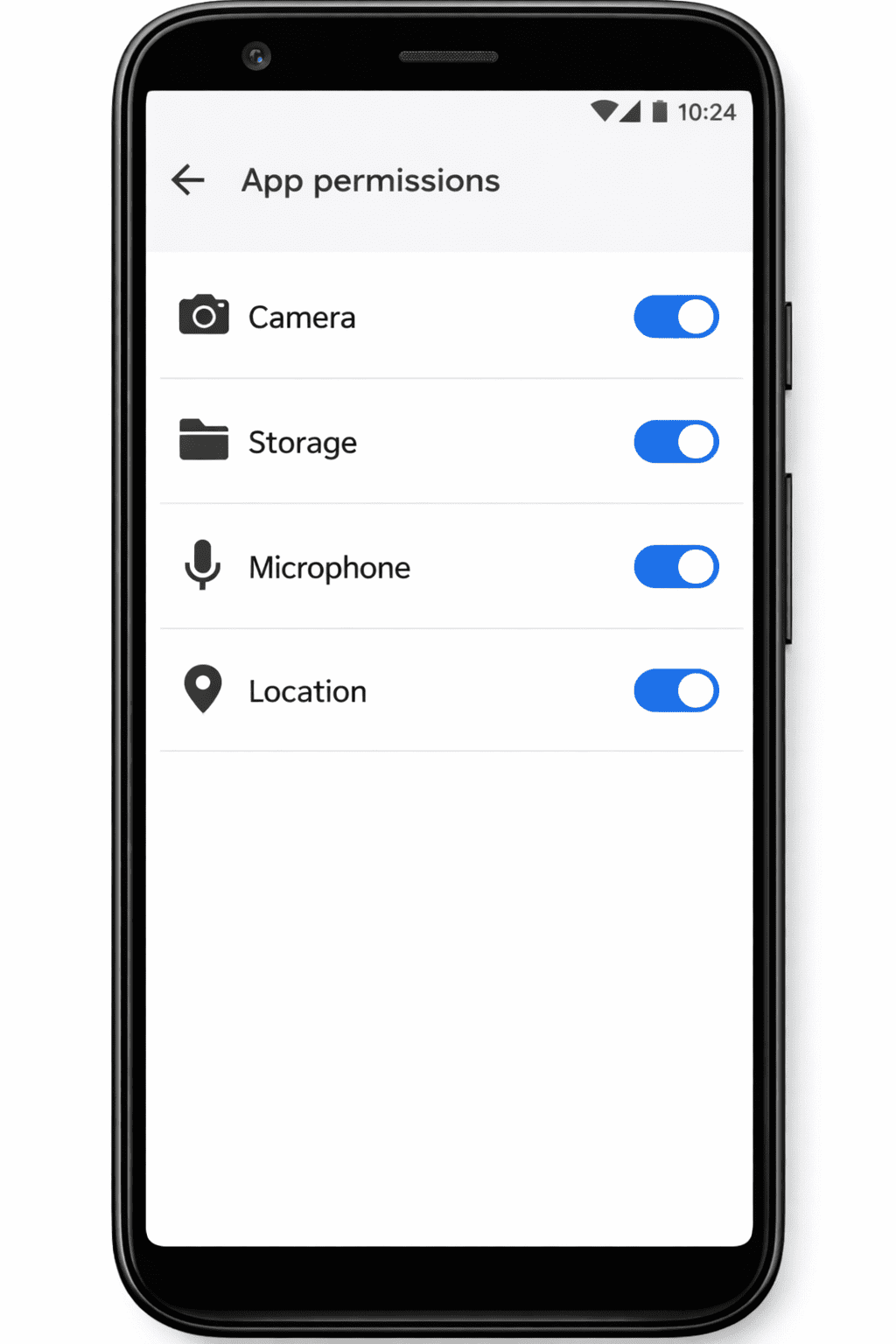
Step 1: Manually Check App Permissions
- Go to Settings
- Tap Apps
- Select the crashing app
- Tap Permissions
- Enable required permissions manually
Focus on:
- Camera
- Storage
- Files & Media
- Microphone
- Location
- Notifications (Android 13+)
Reopen app and test.
Step 2: Clear App Cache
Cache corruption often triggers crashes.
- Settings → Apps
- Select app
- Tap Storage
- Tap Clear Cache
Do not clear data unless necessary.
Step 3: Reset App Preferences
This resets disabled permissions without deleting data.
- Settings → Apps
- Tap three dots
- Select Reset App Preferences
This restores:
- Default permissions
- Disabled apps
- Background restrictions
Step 4: Update the App
Developers often release patches after Android updates.
Go to Google Play Store and check for updates.
Stat Insight: Google Play reports that over 70% of crash-related issues are resolved within two minor app updates after a major Android release.
Step 5: Reinstall the App
If permissions are corrupted:
- Uninstall the app
- Restart phone
- Reinstall from Play Store
This rebuilds permission records cleanly.
Advanced Fixes (Technical & Developer-Level)
If you’re more technical or a developer:
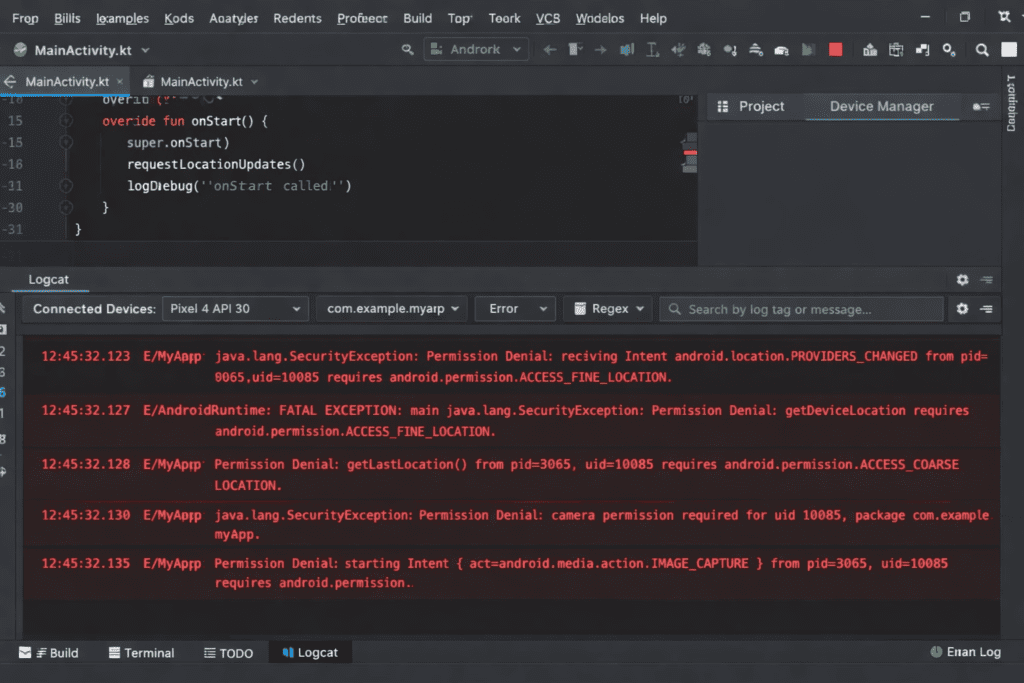
1. Check Logcat for Permission Denials
Look for:
- SecurityException
- Permission Denial logs
- EACCES errors
Example log:
java.lang.SecurityException: Permission Denial
2. Update targetSdkVersion
Apps targeting older SDK versions may break.
Developers should:
- Update targetSdkVersion
- Test runtime permission flows
- Handle denied permission gracefully
3. Implement Proper Permission Checks
Before accessing sensitive features:
- Check permission status
- Request permission if not granted
- Handle denial fallback
4. Handle Scoped Storage Properly
Android 10+ requires:
- Use of MediaStore API
- SAF (Storage Access Framework)
Direct file path access often fails.
5. Handle Notification Runtime Permission (Android 13+)
Apps must request POST_NOTIFICATIONS permission explicitly.
Failure can cause crashes in some apps relying heavily on push.
Real Data & Statistics
- Android powers over 70% of global smartphones (StatCounter).
- Android 13 introduced notification runtime permissions affecting millions of apps.
- Google reports that permission-related crashes are among the top 3 causes of post-update instability.
- Apps targeting SDK versions more than 2 levels behind show higher crash rates.
Authority references:
According to StatCounter’s global market share data, Android powers over 70% of smartphones worldwide.Google play console crash reporting, reports that permission-related crashes are among the top causes of post-update instability.
Preventing Future Permission-Based Crashes
For Users
- Keep apps updated regularly
- Avoid sideloading outdated APKs
- Review permissions after system updates
- Avoid aggressive battery optimization tools
For Developers
- Target latest stable SDK
- Implement defensive permission handling
- Test beta Android releases
- Use crash analytics tools
- Provide fallback UI if permission denied
Key Takeaways
- Android apps crashing after system update is often caused by runtime permission conflicts.
- Permission model changes are common in major Android releases.
- Manual permission review fixes many cases.
- Updating apps resolves most compatibility issues.
- Developers must handle permissions dynamically and defensively.
Frequently Asked Question (FAQ)
1. Why do apps crash immediately after Android update?
Because the update may modify permission policies or reset existing permissions, causing runtime conflicts.
2. How do I fix Android apps crashing after update?
Check permissions, clear cache, update app, or reinstall.
3. Does Android reset permissions automatically?
Yes. Android auto-resets unused app permissions for privacy.
4. Can outdated apps crash after system update?
Yes. Apps targeting old SDK versions may fail under new permission rules.
5. Will factory reset fix permission-related crashes?
Yes, but it should be a last resort after trying simpler solutions.
6. Why does my app crash when accessing storage?
Likely due to scoped storage restrictions introduced in newer Android versions.
Conclusion
When Android apps keep crashing after a system update, the issue often lies beneath the surface — within the runtime permission framework.
As Android strengthens privacy controls, apps must adapt. If they don’t, conflicts arise.
The good news: most permission-based crashes are fixable without technical expertise. A quick permission check or app update solves the majority of cases.
Understanding how runtime permissions work empowers you to diagnose and resolve these issues confidently — instead of assuming your phone is broken.
Schema-Ready FAQ Section
Q1: Why do Android apps crash after system update?
Android updates often modify permission policies. Apps that fail to handle new runtime permission rules may crash.
Q2: How can I fix apps crashing after Android update?
Check app permissions, clear cache, update the app, or reinstall it.
Q3: What are runtime permission conflicts?
They occur when apps attempt to access restricted features without proper user-granted permission.
Q4: Does Android auto-reset permissions?
Yes. Android may reset unused app permissions automatically for privacy protection.
Q5: Are older apps more likely to crash after update?
Yes. Apps targeting outdated SDK versions are more vulnerable to permission enforcement changes.