
Android Touchscreen Ghost Taps — Digitizer vs Firmware Fault
Introduction
Android ghost touch fix is something you urgently need when your phone starts acting on its own — opening apps, typing randomly, or scrolling without any touch.
This issue, commonly called ghost touch, can make your device almost unusable. But the real problem is not the symptom — it’s identifying the cause.
Is it a digitizer (hardware) fault?
Or a firmware (software) glitch?
Most users waste time trying random fixes without diagnosing the root issue.
In this guide, you’ll learn:
- How to identify whether it’s hardware or software
- Proven methods to fix ghost touch permanently
- When you should repair or replace your screen
Table of Contents
- What is Ghost Touch in Android
- Digitizer vs Firmware — Core Difference
- Common Causes of Ghost Touch
- How to Identify the Real Problem
- Fixes for Firmware-Related Ghost Touch
- Fixes for Digitizer (Hardware) Issues
- Advanced Troubleshooting Steps
- Prevention Tips
- Key Takeaways
- FAQs
What is Ghost Touch in Android
Ghost touch refers to unintended screen inputs where your phone behaves as if someone is touching the display when no one is.
Common Symptoms
- Apps opening automatically
- Screen scrolling by itself
- Random typing or ghost clicks
- Touch not responding properly
- Multi-touch behaving incorrectly
📊 Fact: Around 30–40% of ghost touch cases are software-related, while 60–70% are hardware (digitizer) issues, especially after drops or screen replacements.
Digitizer vs Firmware — Core Difference
Understanding this difference is critical.
1. Digitizer (Hardware Layer)
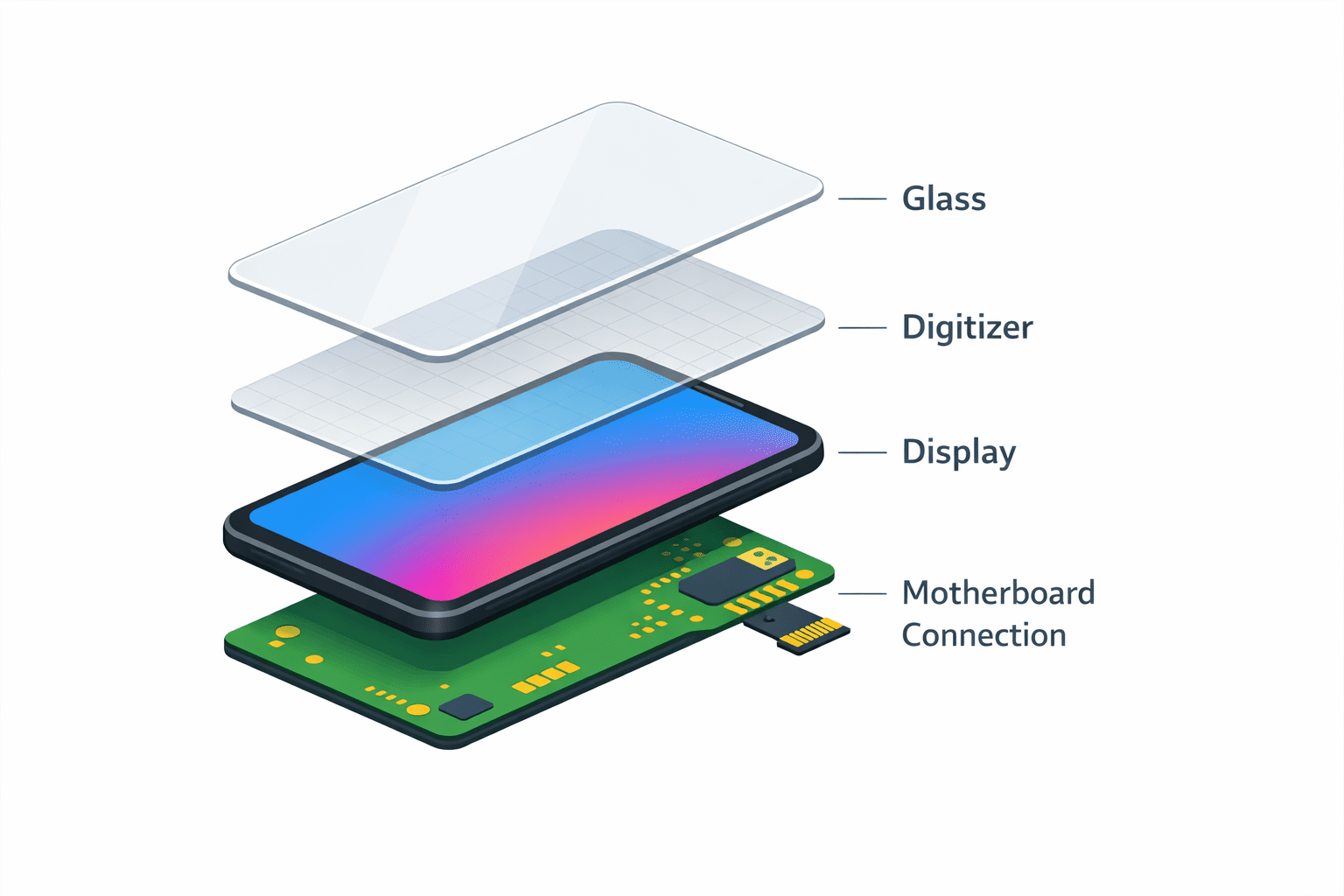
- The digitizer is the physical layer under your screen that detects touch.
- If damaged → incorrect touch signals are sent.
Symptoms of digitizer issue:
- Touch issues in specific areas
- Ghost taps increase when pressing screen
- Problem worsens over time
2. Firmware (Software Layer)
- Firmware controls how touch input is processed.
- Bugs or conflicts can cause false touch signals.
Symptoms of firmware issue:
- Happens after update
- Occurs randomly across full screen
- Disappears in safe mode
Common Causes of Ghost Touch
Hardware Causes
- Cracked or damaged screen
- Poor-quality screen replacement
- Moisture inside screen
- Overheating affecting touch sensors
Software Causes
- Buggy Android updates
- Faulty apps interfering with touch
- Display calibration issues
- Malware or system glitches
How to Identify the Real Problem
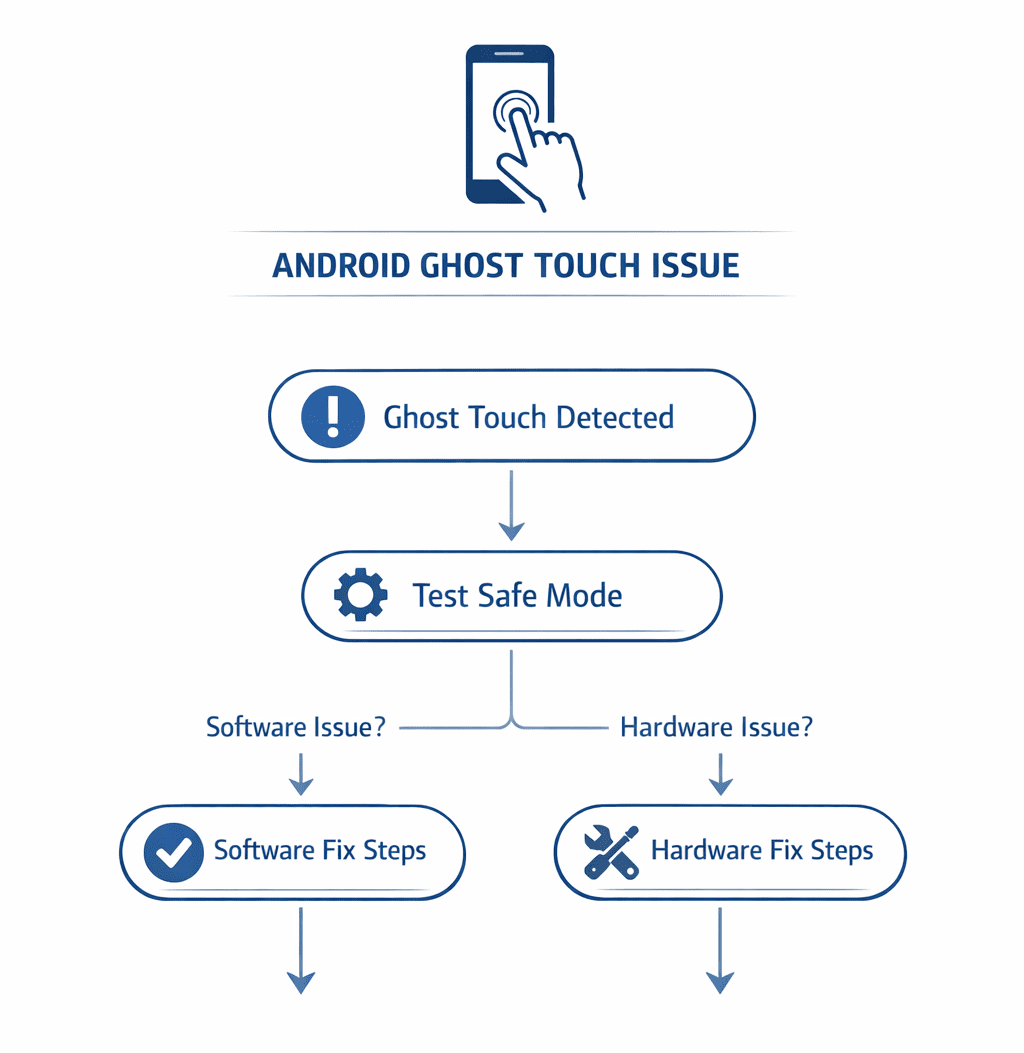
Step 1: Test in Safe Mode
- Boot into Safe Mode
- If issue disappears → software problem
Step 2: Screen Test Apps
Use touch test apps to detect:
- Dead zones
- Random touch inputs
Step 3: Physical Inspection
Check for:
- Cracks
- Screen lifting
- Water damage
Step 4: Heat Check
- Does ghost touch increase when device heats up?
👉 Likely hardware issue
Fixes for Firmware-Related Ghost Touch
1. Restart Your Device
Simple but effective for temporary glitches.
2. Boot into Safe Mode
If problem stops:
- Uninstall recently installed apps
3. Update Android System
- Go to Settings → System → Update
- Fixes firmware bugs
4. Calibrate Touchscreen
Some devices support calibration via:
- Hidden service menus
- Third-party apps
5. Clear Cache Partition
- Boot into recovery mode
- Clear system cache
6. Factory Reset (Last Software Fix)
- Backup data first
- Removes deep software conflicts
Updating your system can resolve many touch-related bugs, as explained in this official Android troubleshooting guide.
Fixes for Digitizer (Hardware) Issues
1. Remove Screen Protector
Cheap or damaged protectors cause false touches.
2. Clean the Screen
- Use microfiber cloth
- Remove moisture or dirt
3. Check Charging Cable
⚠️ Poor grounding can cause ghost touch while charging.
4. Avoid Overheating
- Remove case
- Let phone cool down
5. Replace Screen/Digitizer
If problem persists:
- Visit authorized service center
- Avoid cheap replacements
📊 Data Insight: Nearly 70% of persistent ghost touch issues require screen replacement.
If the problem is hardware-related, you can refer to professional teardown and repair resources before replacing your screen.
Advanced Troubleshooting Steps
1. Use Developer Options
- Enable Show taps
- Observe ghost inputs visually
2. Flash Stock Firmware
- Reinstall original OS
- Fix deep firmware corruption
3. Check Grounding Issues
- Try using phone without charger
- Use original charger only
4. Test Without Case
Some cases create pressure on screen edges.
Prevention Tips
- Use original accessories only
- Avoid cheap screen replacements
- Keep device away from moisture
- Update system regularly
- Avoid overheating (gaming/charging together)
Key Takeaways
- Ghost touch is caused by hardware (digitizer) or software (firmware)
- Safe Mode is the quickest way to identify cause
- Software issues are fixable without cost
- Hardware issues usually require screen replacement
- Avoid cheap repairs to prevent recurring issues
Conclusion
Ghost touch problems can feel like your phone is out of control, but the solution becomes simple once you identify the root cause.
If it’s firmware, you can fix it yourself with updates, resets, or app removal.
If it’s digitizer-related, no amount of software fixes will help — replacement is the only reliable solution.
The key is diagnosis before action.
Follow the steps in this guide, and you’ll not only fix the issue — you’ll understand exactly why it happened.
FAQs
1. What causes ghost touch on Android?
It can be caused by hardware damage (digitizer) or software issues like buggy updates or apps.
2. Can ghost touch fix itself?
Temporary glitches may disappear, but persistent issues usually need proper fixes.
3. How do I know if my screen is damaged?
Look for cracks, dead zones, or ghost touches in specific areas.
4. Does factory reset fix ghost touch?
Yes, but only if the issue is software-related.
5. Why does ghost touch happen while charging?
Due to poor grounding or low-quality chargers.
6. Is ghost touch dangerous?
Not physically, but it can lead to data loss or unwanted actions.
7. How much does screen replacement cost?
Depends on device, typically ranges from ₹1500–₹15000.
Schema-Ready FAQ Section
What is ghost touch on Android?
Ghost touch on Android is a touchscreen issue where the device registers taps, swipes, or gestures without any physical input. This happens when the touch sensor (digitizer) sends incorrect signals or when software misinterprets touch data.
How to fix ghost touch on Android?
You can fix ghost touch by following these steps:
Restart your device
Boot into Safe Mode to check for app conflicts
Remove screen protector and clean the display
Update your Android system
Clear cache partition
Perform a factory reset (if software-related)
Replace the screen if the issue is hardware-related
Is ghost touch a hardware or software issue?
Ghost touch can be both:
Software issue (firmware): caused by bugs, updates, or apps
Hardware issue (digitizer): caused by screen damage or faulty components
Testing in Safe Mode helps identify the cause. If the issue disappears, it is software-related.
Can factory reset fix ghost touch?
Yes, but only if the issue is caused by software or firmware glitches. A factory reset removes corrupted files, conflicting apps, and system bugs. It will not fix hardware damage like a faulty digitizer.
Why does ghost touch happen while charging?
Ghost touch during charging is usually caused by:
Low-quality or incompatible charger
Poor grounding or voltage fluctuations
Damaged charging cable
Using an original charger often resolves this issue.
How to test touchscreen problems on Android?
You can test touchscreen issues by:
Using touch diagnostic apps from Play Store
Enabling “Show taps” in Developer Options
Drawing lines across the screen to detect dead zones or random inputs
This helps identify whether the issue is localized (hardware) or random (software).
When should I replace my phone screen?
You should replace your screen if:
Ghost touch persists after factory reset
Touch issues occur in specific areas
Screen is cracked, lifting, or water-damaged
Problem worsens over time
In such cases, the digitizer is likely faulty and needs replacement.