
Android Phone Heating Without Usage — CPU Throttling & Background Sync Analysis
Introduction
Many users report android phone heating without usage, where the device becomes warm even when idle or the screen is off.You pick up your phone after leaving it untouched for an hour — and it feels unusually warm. No gaming, no streaming, no heavy apps running. Yet the device is heating up.
This is a surprisingly common Android problem: phones overheating even when idle.
In many cases, the issue is not faulty hardware. Instead, hidden processes inside the system are working overtime — syncing data, running services, or pushing the CPU beyond normal limits.
Two of the most common causes are:
- CPU throttling caused by background workloads
- Aggressive background sync operations
Understanding how these processes work is the key to fixing the issue.
In this guide, we will break down:
- Why Android phones heat up without usage
- How CPU throttling actually works
- The hidden impact of background sync
- How to diagnose the real cause
- Practical solutions to stop the heating problem
Table of Contents
- Why Android Phones Heat Up Without Usage
- Understanding CPU Throttling in Android
- Background Sync: The Hidden Battery & Heat Drain
- Common Apps That Cause Idle Heating
- How to Diagnose the Real Cause
- Step-by-Step Solutions to Fix Android Heating
- Advanced Fixes for Persistent Overheating
- When Heating Indicates Hardware Problems
- Key Takeaways
- FAQs
Why Android Phone Heating Without Usage Happens
Even when your screen is off, Android devices are never truly idle.
Several system processes continue running in the background, including:
- Email synchronization
- Cloud backups
- App updates
- Location services
- Security scans
- Notification polling
If these tasks spike CPU activity, the processor generates heat.
Statistics
According to mobile performance studies:
- Background processes account for nearly 30–40% of CPU activity on idle Android devices.
- Misbehaving apps can increase idle CPU usage by up to 70%.
This constant workload causes the phone to warm up — even when you are not using it.
Understanding CPU Throttling in Android
What Is CPU Throttling?
CPU throttling is a thermal protection mechanism built into smartphones.
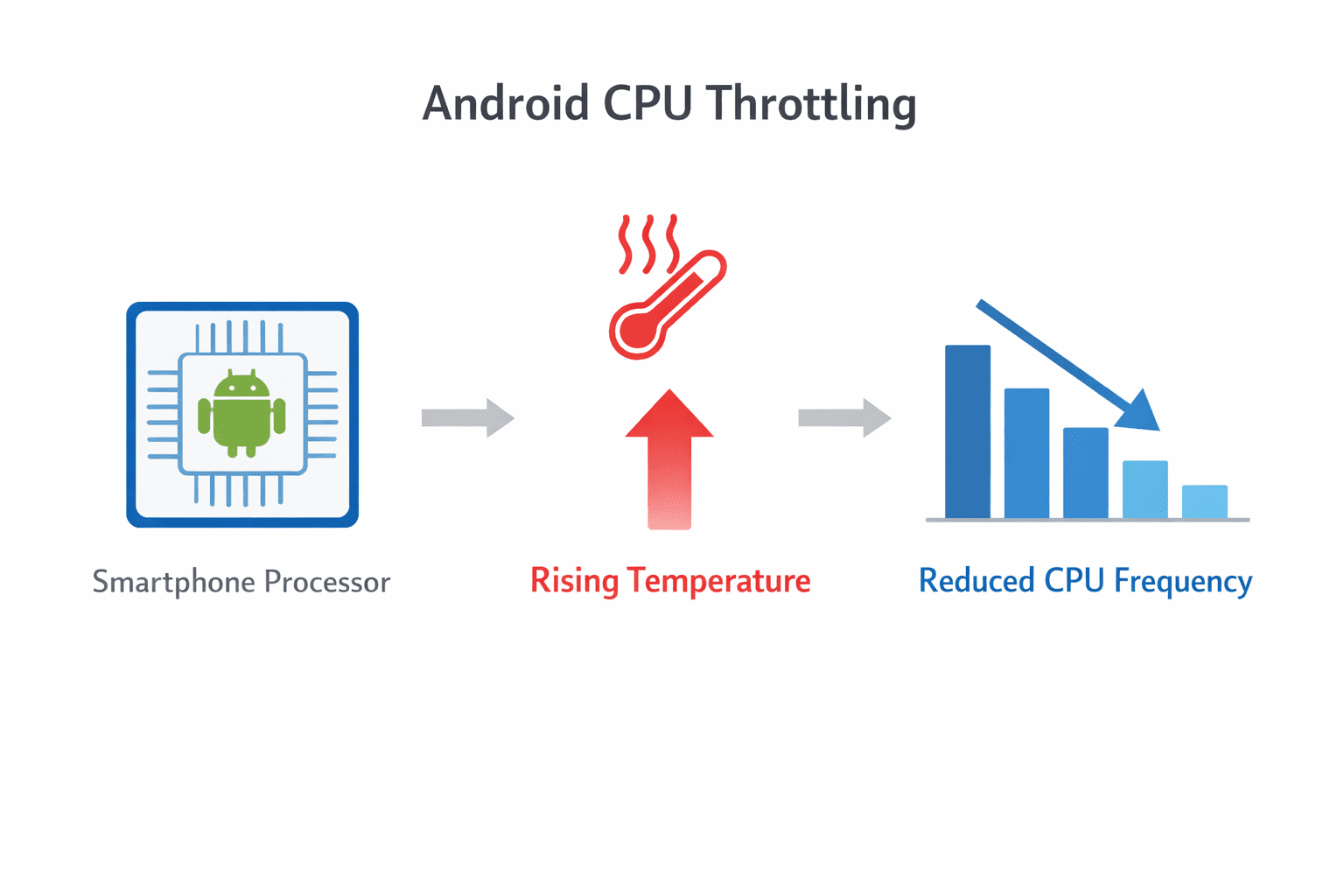
When the processor temperature rises beyond safe limits, the system automatically reduces CPU speed to prevent damage.
How It Works
- CPU temperature increases
- System detects thermal threshold
- CPU frequency decreases
- Performance drops to reduce heat
While this prevents hardware damage, it creates another issue:
The phone may remain warm for longer periods because tasks take longer to complete.
Why CPU Throttling Happens When Idle
Idle heating usually occurs when background tasks repeatedly spike CPU usage.
Examples include:
- Continuous app synchronization
- Google Play Services loops
- Malware or poorly coded apps
- System indexing after updates
These micro-spikes trigger thermal management repeatedly.
Android devices automatically reduce processor speed to prevent overheating through a process known as CPU throttling.
Background Sync: The Hidden Battery & Heat Drain
Background sync is one of the largest contributors to idle heating.
Android constantly checks for new data across multiple services.
These include:
- Gmail
- Google Photos
- WhatsApp backups
- Drive synchronization
- Social media notifications
Each sync request activates:
- CPU
- Network radios
- Storage access
Together, these create noticeable heat.
Example Scenario
Your phone may be syncing:
- 3 Gmail accounts
- Google Photos backup
- WhatsApp cloud backup
- Telegram message sync
Even with the screen off, the processor repeatedly wakes up.
This cycle is called wakelocks, and it prevents the device from entering deep sleep.
Common Apps That Cause Idle Heating
Some apps are known to create excessive background activity.
Typical offenders include:
Social Media Apps
- Snapchat
These constantly poll servers for notifications.
Cloud Storage Apps
- Google Drive
- Dropbox
- OneDrive
Large file sync operations can spike CPU and storage activity.
Messaging Apps
- Telegram
- Discord
Media backup and encryption processes increase CPU load.
Security & Cleaner Apps
Ironically, many battery saver or cleaner apps create additional background tasks.
How to Diagnose the Real Cause
Before applying fixes, identify what is causing the heat.
Method 1: Check Battery Usage
Go to:
Settings → Battery → Battery Usage
Look for apps consuming battery while idle.
Method 2: Enable Developer Options
Steps:
- Open Settings
- Tap About Phone
- Tap Build Number 7 times
- Go to Developer Options
Now check:
Running Services
This shows which apps are consuming CPU.
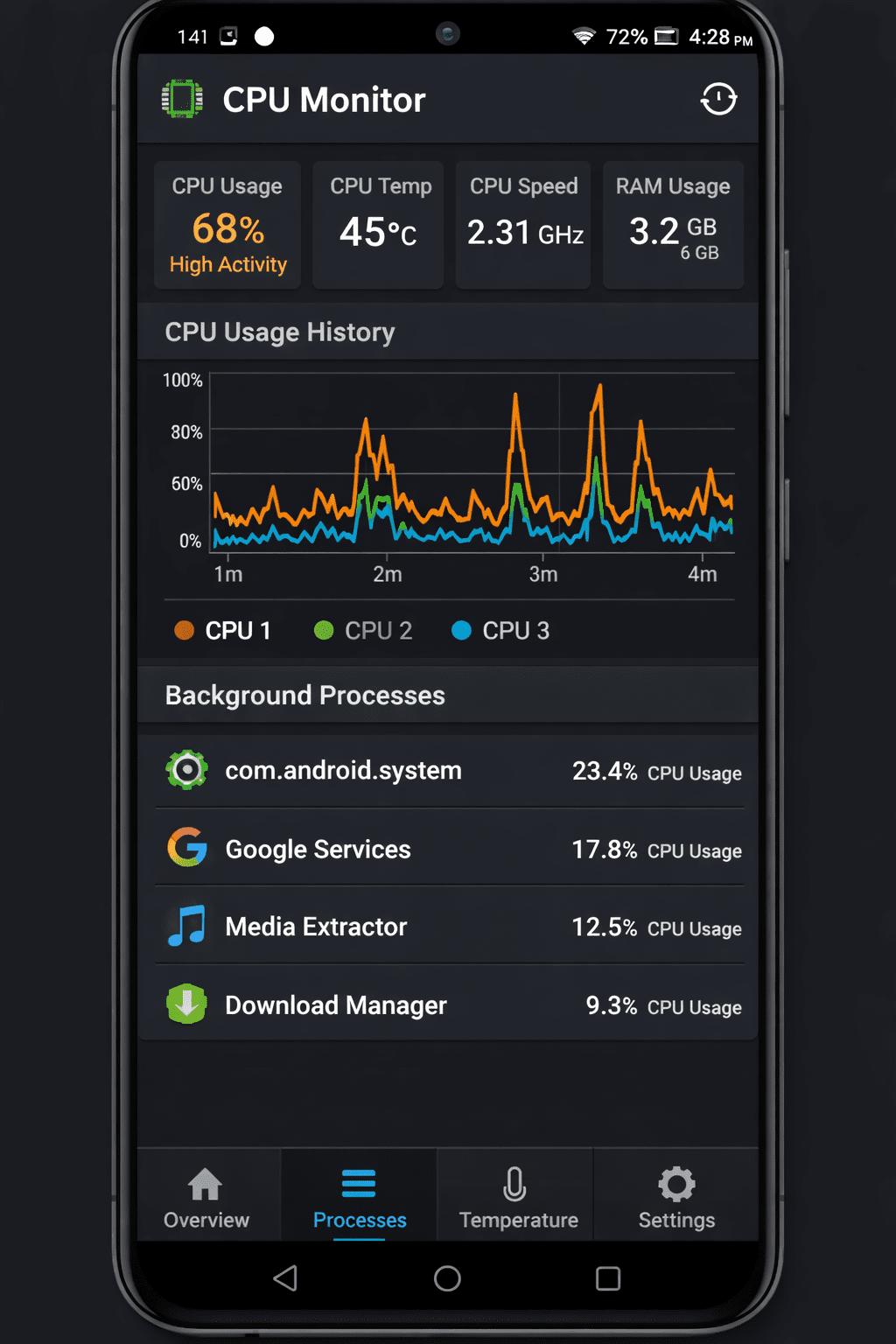
Method 3: Use CPU Monitoring Apps
Recommended diagnostic tools:
- CPU Monitor
- DevCheck
- AccuBattery
These tools display real-time CPU activity.
Step-by-Step Solutions to Fix Android Heating
1. Limit Background Sync
Go to:
Settings → Accounts → Sync
Disable unnecessary sync options.
Examples:
- Google Fit
- Drive auto sync
- Unused email accounts
2. Restrict Background Activity
Steps:
- Settings
- Apps
- Select app
- Battery
- Choose Restricted
This prevents apps from running when idle.
Background services and synchronization processes can prevent Android devices from entering deep sleep mode.
3. Disable Unused Location Services
Location tracking constantly activates sensors.
Navigate to:
Settings → Location → Location Services
Disable:
- WiFi scanning
- Bluetooth scanning
4. Reduce Notification Polling
Some apps check servers every few seconds.
Inside each app:
Disable:
- background refresh
- auto-sync
- live notifications
5. Clear Google Play Services Cache
Google Play Services sometimes enters a sync loop.
Steps:
- Settings
- Apps
- Google Play Services
- Storage
- Clear Cache
6. Remove Problematic Apps
If an app constantly appears in battery stats:
Uninstall it.
Many overheating cases are solved by removing just one problematic app.
Advanced Fixes for Persistent Overheating
If basic solutions fail, deeper system fixes may help.
Reset App Preferences
This restores default permissions.
Steps:
Settings → Apps → Reset App Preferences
Disable Auto App Updates
Continuous updates generate background heat.
Open:
Google Play Store → Settings → Network Preferences
Disable auto-updates over mobile data.
Update System Software
Manufacturers release thermal optimization patches.
Check:
Settings → System → Software Update
Factory Reset (Last Resort)
If overheating continues, a system reset may remove hidden software issues.
Always back up your data before performing this step.
When Heating Indicates Hardware Problems
Sometimes overheating is not caused by software.
Possible hardware causes include:
- Battery degradation
- Damaged charging IC
- Faulty thermal sensor
- Internal short circuits
Signs of hardware problems:
- Heat near battery area
- Phone heating while powered off
- Rapid battery drain
- Random shutdowns
In these cases, professional repair is required.
Key Takeaways
- Idle Android heating is usually caused by background sync and CPU spikes.
- Apps running in the background can prevent the phone from entering deep sleep.
- CPU throttling protects hardware but can prolong warmth.
- Limiting sync, restricting apps, and clearing system caches can significantly reduce heat.
- Persistent overheating may indicate battery or hardware failure.
Conclusion
An Android phone heating without usage can feel alarming, but in most cases the cause is purely software related.
Background sync services, aggressive apps, and CPU activity loops often generate hidden workloads that increase temperature even when the device is idle.
By diagnosing the root cause and applying targeted fixes — such as restricting background apps, reducing sync frequency, and clearing system caches — you can restore normal temperature behavior.
If heating continues despite these solutions, it may signal deeper hardware issues that require professional inspection.
Monitoring system activity regularly helps prevent future overheating and ensures your device operates efficiently.
FAQs
Why does my Android phone heat up when not in use?
Most commonly due to background sync processes, apps running in the background, or Google Play Services activity.
Is phone heating dangerous?
Occasional warmth is normal, but continuous overheating can damage battery health and reduce device lifespan.
Can malware cause phone overheating?
Yes. Malicious apps may run hidden background processes that increase CPU usage.
Does fast charging cause overheating?
Fast charging can generate temporary heat, but it should stop once charging completes.
How can I check which app is causing heating?
Open Settings → Battery Usage to identify apps consuming battery while idle.
Can background sync be disabled safely?
Yes. Most sync options are optional and can be disabled without affecting basic phone functionality.
Schema-Ready FAQ Section
Q1: Why does my Android phone heat up when idle?
A: Idle heating usually occurs due to background sync processes, system services, or apps running continuously in the background.
Q2: What is CPU throttling on Android?
A: CPU throttling is a thermal protection system that reduces processor speed when temperatures rise to prevent hardware damage.
Q3: How do I stop my Android phone from overheating?
A: Restrict background apps, disable unnecessary sync, clear system caches, and uninstall problematic apps.
Q4: Can background apps cause overheating?
A: Yes. Apps performing constant data sync or notifications can increase CPU activity and device temperature.
Q5: Is it normal for phones to warm up slightly?
A: Mild warmth is normal, but continuous high temperature indicates a software or hardware problem.