
Android Storage Full Even After Deleting Files — Hidden System Cache Deep Dive
Introduction
Android storage full after deleting files is one of the most frustrating issues users face today. You remove photos, uninstall apps, and clear downloads—yet your phone still shows “Storage Almost Full.”
This happens because Android stores hidden data like system cache, residual app files, and temporary logs that don’t get deleted normally. Over time, this invisible data builds up and consumes a large portion of your storage.
Modern Android devices silently accumulate hidden cache, residual app data, system logs, and temporary files that don’t disappear with normal cleaning. In fact, studies show that up to 30–40% of storage on heavily used Android devices is occupied by cache and temporary data.
This guide breaks down:
- Why storage stays full even after cleanup
- Where hidden data actually lives
- Step-by-step methods to reclaim space safely
No fluff. Only actionable fixes.
Table of Contents
- Why Storage Stays Full After Deleting Files
- Understanding Android Storage Categories
- Hidden Storage Culprits (Deep Dive)
- Step-by-Step Fixes That Actually Work
- Advanced Cleanup Techniques
- When It’s a System-Level Problem
- Preventing Storage Issues in the Future
- FAQs
- Key Takeaways
- Conclusion
Why Storage Stays Full After Deleting Files
Deleting files only removes visible user data. Android storage, however, includes multiple hidden layers:
- App cache and background data
- System-generated logs
- Temporary files from updates
- Residual files from uninstalled apps
- Media thumbnails and indexing data
Key insight:
When you delete a file, Android may retain related metadata and cache, which still occupies space.
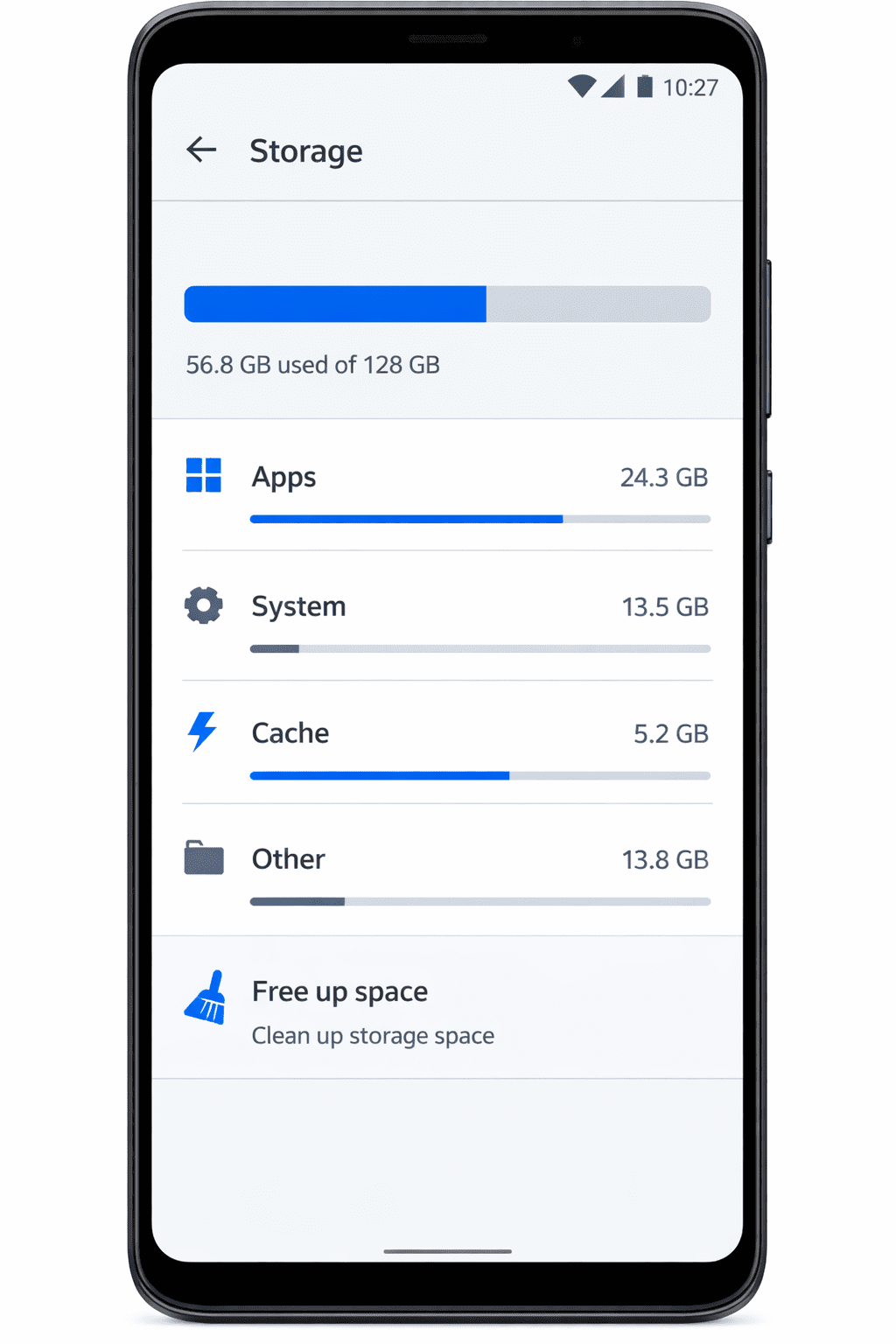
Understanding Android Storage Categories
Before fixing the issue, understand what Android shows:
1. Apps
Includes:
- Installed apps
- App data
- Cached files
2. System
Includes:
- OS files
- System cache
- Logs and updates
3. Other / Misc
This is where most hidden storage sits:
- Temporary files
- Leftover app data
- Corrupted cache
- Invisible folders
Hidden Storage Culprits (Deep Dive)
1. App Cache (Biggest Hidden Consumer)
Apps like Chrome, Instagram, and YouTube store:
- Images
- Scripts
- Offline data
Heavy users can accumulate 1–5 GB cache per app.
2. Residual Files After Uninstalling Apps
When you uninstall an app, it often leaves:
/Android/data/folders- Config files
- Logs
These are not removed automatically.
3. System Cache & OTA Update Files
Android stores:
- Update packages
- Temporary installation files
- System logs
These can take 2–8 GB over time.
4. Media Thumbnails
Every image/video generates a thumbnail stored in:
/DCIM/.thumbnails
Even if you delete photos, thumbnails may remain.
5. Messaging Apps (Silent Storage Killers)
Apps like WhatsApp/Telegram store:
- Forwarded media
- Hidden backups
- Voice notes
WhatsApp alone can exceed 10–20 GB.
6. Download Manager Residue
Failed or partial downloads remain hidden in system directories.
Step-by-Step Fixes That Actually Work
Follow these in order.
Step 1: Clear App Cache (Safe & Immediate Fix)
Go to:
Settings → Apps → Select App → Storage → Clear Cache
Focus on:
- Chrome
- YouTube
If you're unsure how to proceed, you can follow official steps to clear cache on Android devices safely without affecting your personal data.
Expected result: Free 2–10 GB instantly.
Step 2: Use Built-in Storage Cleaner
Go to:
Settings → Storage → Clean Up
Android suggests:
- Large files
- Duplicate files
- Unused apps
Step 3: Clear WhatsApp/Telegram Storage
Open WhatsApp:
Settings → Storage and Data → Manage Storage
Delete:
- Large videos
- Forwarded media
- Old backups
Step 4: Delete Thumbnails Manually
Use a file manager:
- Navigate to:
/DCIM/.thumbnails - Delete all files
They will regenerate, but clean old data.
Step 5: Remove Residual App Files
Go to:
Internal Storage → Android → data
Delete folders of apps you’ve already uninstalled.
Step 6: Clear Download Folder
Check:
- Downloads
- Hidden downloads
- Failed APK files
Android also provides built-in tools to help you manage storage on Android, including identifying large files and unused apps.
Advanced Cleanup Techniques
1. Use Files by Google App
This app identifies:
- Junk files
- Duplicate media
- Large files
It uses AI-based suggestions for cleanup.
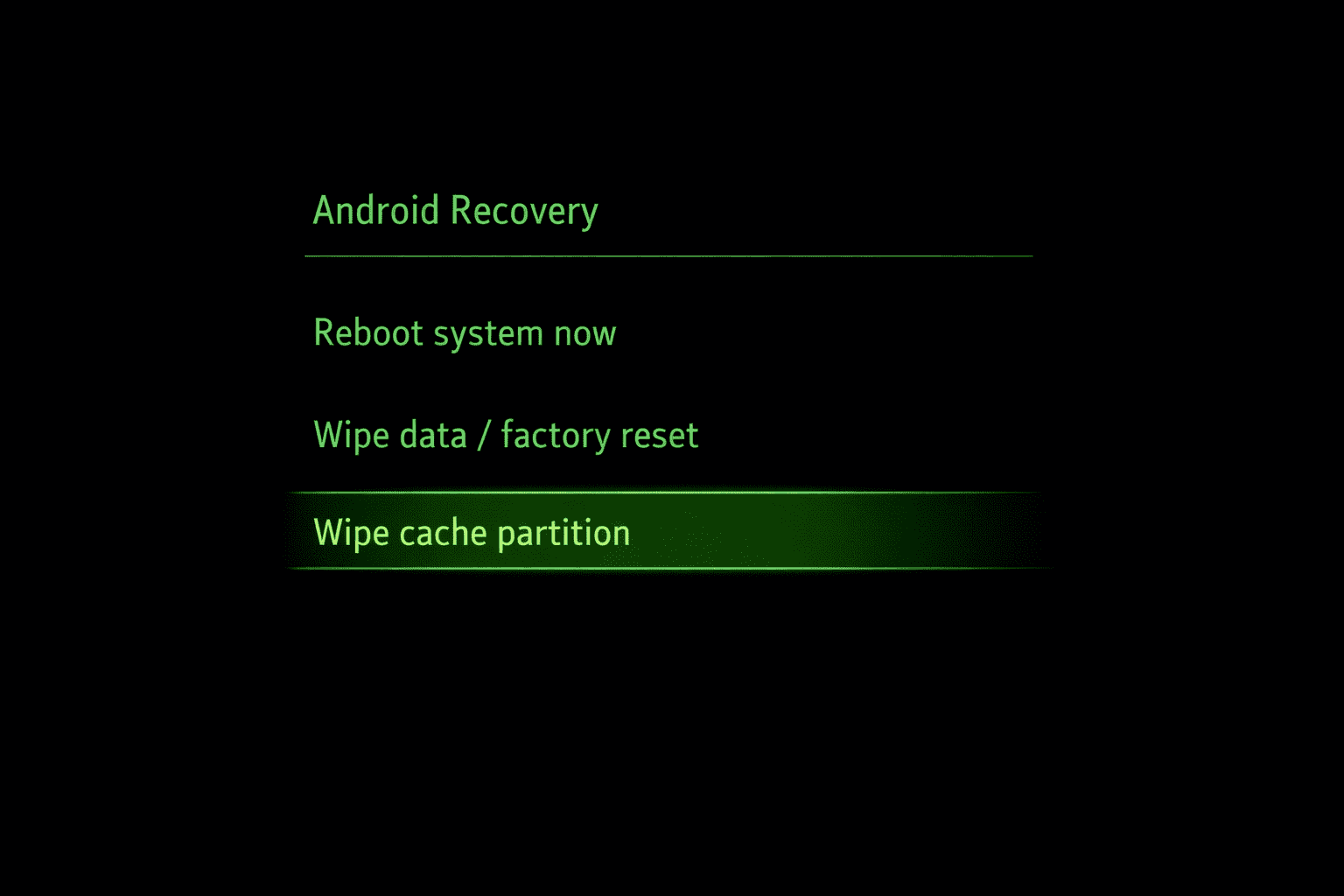
2. Clear System Cache (Recovery Mode)
Steps:
- Power off device
- Hold Power + Volume Up
- Enter Recovery Mode
- Select Wipe Cache Partition
Note: Safe. Does not delete personal data.
3. Reset App Preferences
Sometimes apps rebuild excessive cache.
Go to:
Settings → Apps → Reset App Preferences
4. Check Hidden Files with File Manager
Enable:
- Show hidden files
Look for:
.cache.temp.log
5. Factory Reset (Last Resort)
If storage still shows full:
- Backup data
- Reset device
This clears deep system-level issues.
When It’s a System-Level Problem
If storage remains full after all fixes, possible causes:
- Storage indexing bug
- Corrupted system cache
- Faulty update
- Fake storage reporting
Solution:
- Restart device
- Update OS
- Factory reset
Preventing Storage Issues in the Future
Do This Regularly:
- Clear app cache weekly
- Delete unused apps
- Clean messaging media
- Use cloud storage (Google Photos)
Avoid:
- Installing heavy apps unnecessarily
- Keeping duplicate files
- Ignoring system updates
FAQs
1. Why is my Android storage full even after deleting everything?
Because hidden cache, residual files, and system logs still occupy space.
2. Is it safe to clear cache?
Yes. It only removes temporary files and does not delete personal data.
3. Why does storage fill up again quickly?
Apps rebuild cache automatically during use.
4. What is “Other” storage in Android?
It includes hidden files, logs, temporary data, and leftover app files.
5. Can WhatsApp really take 20GB?
Yes. Media-heavy usage can easily exceed 10–20GB.
6. Does factory reset fix storage issues?
Yes, it clears all hidden and corrupted system data.
Key Takeaways
- Storage issues are mostly caused by hidden cache and residual data
- Clearing app cache can free gigabytes instantly
- Messaging apps are major storage consumers
- Manual cleanup of hidden files is often required
- Factory reset is the final solution for deep issues
Conclusion
When Android storage remains full after deleting files, the problem isn’t what you see—it’s what you don’t.
Hidden system cache, app residue, and temporary files silently accumulate until your device runs out of space.
The solution is not just deleting files—it’s understanding how Android manages storage and cleaning it strategically.
Follow the steps in this guide, and you’ll not only fix the issue—but prevent it from happening again.
Schema-Ready FAQ Section
Q1: Why is my Android storage still full after deleting files?
A: Hidden cache, residual app data, and system logs remain even after deleting visible files.
Q2: How do I clear hidden storage on Android?
A: Clear app cache, delete thumbnails, remove residual files, and use storage cleaner tools.
Q3: What is taking up space in Android “Other” storage?
A: Temporary files, logs, cached data, and leftover app files.
Q4: Is clearing cache safe?
A: Yes, it only removes temporary data and does not affect personal files.
Q5: Why does storage fill up again quickly?
A: Apps rebuild cache and store new temporary data during usage.
Q6: What is the best way to free space permanently?
A: Regular cache cleaning, managing app data, and using cloud storage.