
Android Stuck in Safe Mode — Boot Flag & Third-Party App Triggers
Introduction
In this guide, you’ll learn 9 proven ways to fix Android stuck in Safe Mode, whether it’s caused by a boot flag issue or a faulty app.
Your phone suddenly boots into Safe Mode—and refuses to leave. No third-party apps work, your layout looks stripped down, and restarting doesn’t fix it. This is not just a random glitch.
In most cases, Safe Mode gets stuck due to two hidden factors:
- A boot flag issue (system-level trigger)
- A problematic third-party app
Understanding why your Android is stuck is the key to fixing it permanently—not just temporarily.
This guide breaks down the exact causes and gives you step-by-step solutions, from basic fixes to advanced recovery methods.
Table of Contents
- What is Safe Mode on Android?
- Why Android Gets Stuck in Safe Mode
- Boot Flag Issues Explained
- Third-Party App Triggers
- Quick Fixes (Try First)
- Advanced Fixes (If Issue Persists)
- When It’s a Hardware Problem
- Preventing Safe Mode Issues
- Key Takeaways
- FAQs
What is Safe Mode on Android?
Safe Mode is a diagnostic state that loads only:
- Core system apps
- Pre-installed services
It disables all third-party apps to help identify problems.
Safe Mode is a built-in diagnostic feature in Android that helps isolate issues, as explained in the Android Safe Mode official documentation.
Why Android Uses Safe Mode:
- Detect faulty apps
- Isolate system issues
- Prevent crash loops
Important:
Safe Mode itself is not a problem—it’s a symptom.
Why Android Gets Stuck in Safe Mode
If your device won’t exit Safe Mode, it usually means something is continuously triggering it.
Main Causes:
1. Boot Flag Misconfiguration
- Android stores boot states in system flags
- If corrupted, it forces Safe Mode on every restart
2. Faulty Third-Party Apps
- Apps with:
- Overlay permissions
- Background services
- Accessibility access
3. Stuck Physical Buttons
- Volume Down button stuck = Safe Mode trigger
4. System Cache Corruption
- Temporary system files causing abnormal boot behavior
5. Firmware Bugs
- Rare, but occurs after updates
Stat Insight:
Over 60% of Safe Mode issues are linked to third-party apps, especially recently installed ones.
Boot Flag Issues Explained
What is a Boot Flag?
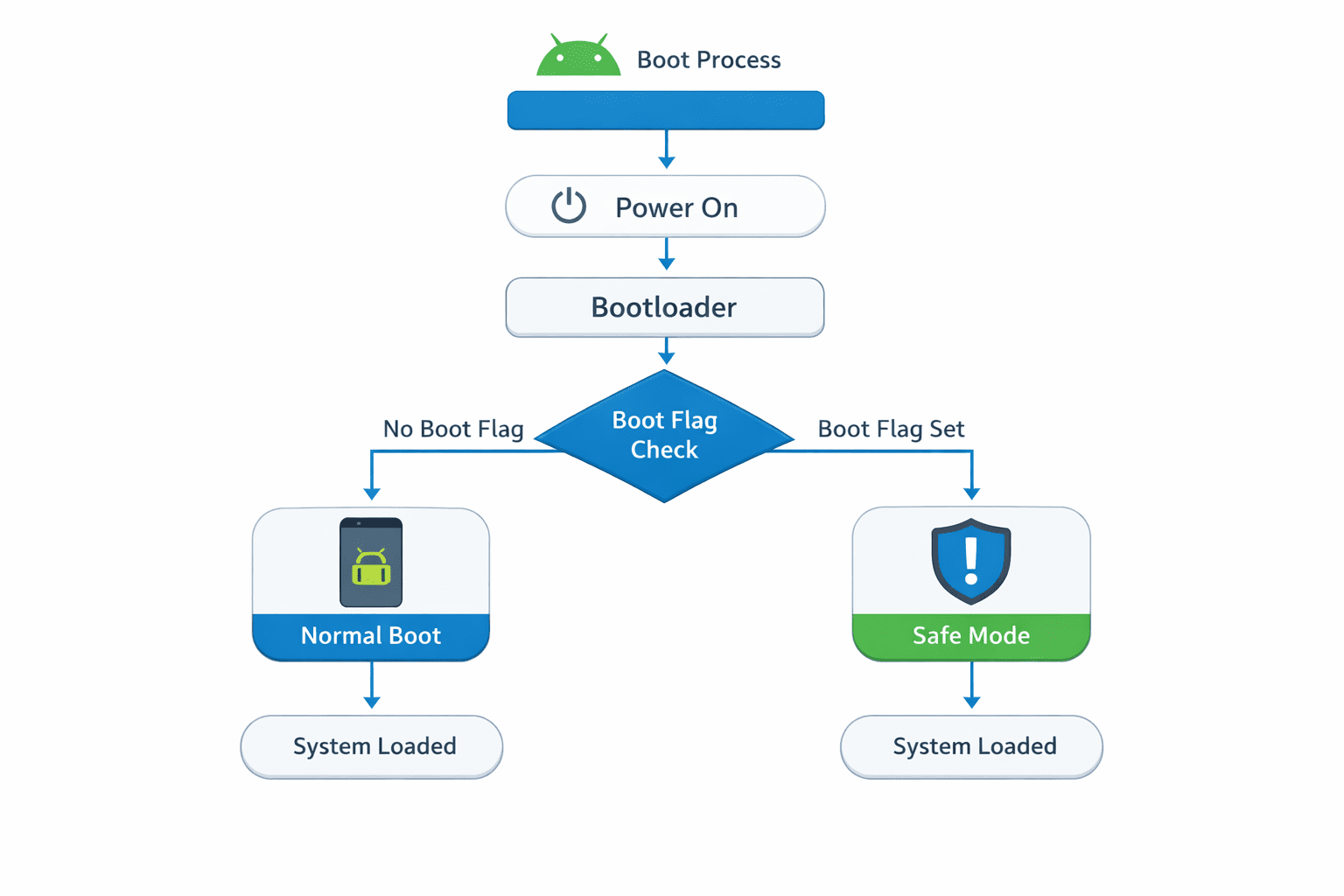
A boot flag is a system-level instruction stored in Android that tells the device how to start.
Examples:
- Normal mode
- Recovery mode
- Safe Mode
How It Gets Stuck
Boot flags can get corrupted due to:
- Improper shutdowns
- System crashes
- OTA update failures
Symptoms of Boot Flag Issue:
- Safe Mode persists after restart
- No recently installed apps causing issue
- Happens suddenly after update
Third-Party App Triggers
Some apps are more likely to force Safe Mode.
High-Risk App Types:
- Launcher apps
- Battery optimizers
- Cleaner apps
- VPN apps
- Screen overlay apps
Why They Cause Issues:
- Modify system behavior
- Run constantly in background
- Conflict with Android security layers
Quick Fixes (Try First)
Start with these simple solutions before moving to advanced methods.
1. Restart Your Device Properly
- Press Power button
- Tap Restart
- Wait for full reboot
If Safe Mode persists → move to next step.
2. Check Volume Buttons
Safe Mode is triggered by:
- Holding Volume Down during boot
What to do:
- Remove phone case
- Press buttons multiple times
- Ensure no button is stuck
3. Remove Recently Installed Apps
Go to:
Settings → Apps → Recently Installed
Uninstall apps added before the issue.
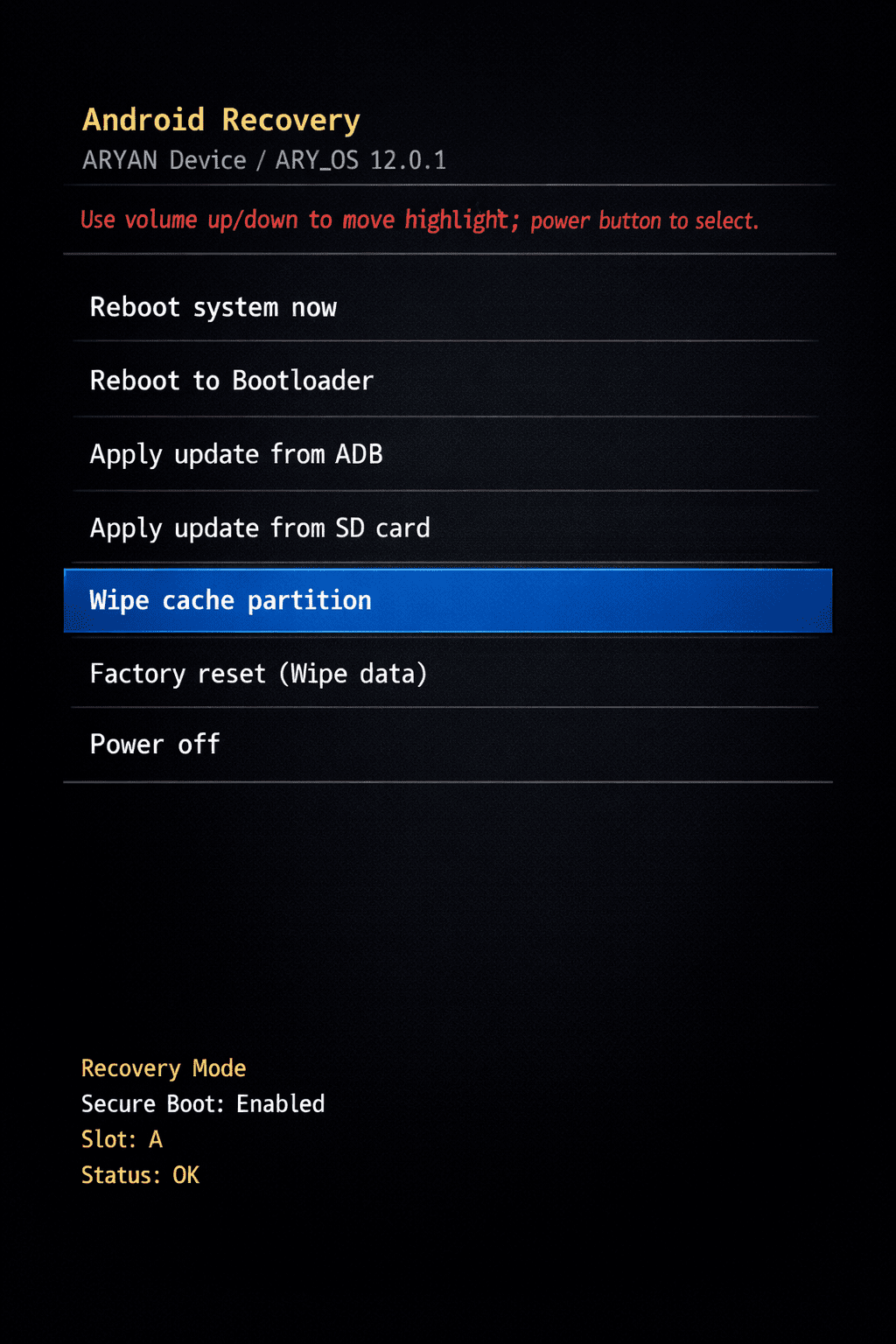
4. Clear System Cache (Recovery Mode)
Steps:
- Power off device
- Hold Power + Volume Up
- Enter Recovery Mode
- Select Wipe Cache Partition
Note: This does NOT delete personal data.
Advanced Fixes (If Issue Persists)
If quick fixes don’t work, use these deeper solutions.
5. Boot into Safe Mode & Identify App
Yes—you’re already in Safe Mode.
Now:
- Start uninstalling apps one by one
- Restart after each uninstall
Focus on:
- Apps with special permissions
6. Reset App Preferences
This resets:
- Disabled apps
- Default apps
- Permission restrictions
Steps:
- Settings → Apps
- Tap 3-dot menu
- Select Reset App Preferences
7. Factory Reset (Last Resort)
If boot flag is corrupted:
Steps:
- Backup your data
- Go to Settings → System → Reset → Factory Reset
This removes:
- All apps
- Corrupted system flags
If the issue continues, you may need to factory reset your Android device safely to remove deep system errors and restore normal boot behavior.
When It’s a Hardware Problem
Sometimes, the issue is not software.
Signs of Hardware Issue:
- Volume button feels stuck
- Phone enters Safe Mode randomly
- Issue persists after factory reset
What to Do:
- Visit authorized service center
- Replace faulty button or board
Preventing Safe Mode Issues
Best Practices:
- Avoid installing unknown apps
- Limit “cleaner” and “optimizer” apps
- Keep Android updated
- Regularly clear unused apps
Pro Tip:
Install apps only from trusted sources and avoid APK files from unknown sites.
Key Takeaways
- Safe Mode is triggered by system or app-level issues
- Boot flag corruption can force Safe Mode continuously
- Third-party apps cause most cases
- Start with:
- Restart
- Button check
- App removal
- Use factory reset only if necessary
- Hardware issues are rare but possible
FAQs
1. Why is my Android stuck in Safe Mode?
Usually due to a faulty app, stuck volume button, or corrupted boot flag.
2. How do I turn off Safe Mode?
Restart your device or remove problematic apps.
3. Can a virus cause Safe Mode?
Indirectly—malicious apps can trigger system instability.
4. Does Safe Mode delete data?
No, it only disables third-party apps temporarily.
5. What if restart doesn’t work?
Try clearing cache or uninstalling recent apps.
6. Is factory reset necessary?
Only if all other methods fail.
Conclusion
An Android device stuck in Safe Mode is frustrating—but not complicated once you understand the root cause.
In most cases, the issue comes down to:
- A misbehaving app
- Or a system boot flag glitch
By following the structured steps above, you can:
- Identify the cause
- Fix it safely
- Prevent it from happening again
The key is not guessing—but diagnosing step by step.
Schema-Ready FAQ Section
1. Why is my Android stuck in Safe Mode?
Your Android may be stuck in Safe Mode due to a faulty third-party app, a stuck volume button (especially Volume Down), or a corrupted system boot flag. In some cases, recent software updates or system crashes can also force the device to continuously boot into Safe Mode.
2. How do I exit Safe Mode on Android?
To exit Safe Mode, restart your device normally by pressing the power button and selecting “Restart.” If that doesn’t work, check for stuck buttons, remove recently installed apps, or clear the system cache via recovery mode. In persistent cases, a factory reset may be required.
3. Can third-party apps cause Safe Mode?
Yes, third-party apps are the most common cause of Safe Mode issues. Apps like launchers, battery optimizers, VPNs, and overlay-based apps can conflict with system processes, forcing Android to boot into Safe Mode to prevent crashes.
4. What is a boot flag in Android?
A boot flag is a system-level instruction stored in Android that determines how the device starts (normal mode, recovery mode, or Safe Mode). If this flag becomes corrupted, the device may repeatedly boot into Safe Mode even after restarting.
5. Does Safe Mode remove apps?
No, Safe Mode does not delete or remove any apps. It temporarily disables all third-party apps so you can troubleshoot issues. Once you exit Safe Mode, all apps become active again.
6. How do I fix Safe Mode without resetting?
You can fix Safe Mode without resetting by restarting your device, checking for stuck buttons, uninstalling recently added apps, and clearing the system cache partition. These steps resolve most issues without data loss.
7. When should I do a factory reset for Safe Mode issues?
A factory reset should only be done if all other methods fail. It is useful when the issue is caused by deep system corruption or persistent boot flag errors. Always back up your data before performing a reset.