
Android Stuck on Boot Animation? Kernel Panic vs Corrupted Cache Partition
When your Android stuck on boot animation or refuses to move past the boot animation, panic sets in quickly. The logo spins. The animation loops. Minutes pass. Nothing changes.
Is it a serious kernel panic? Or just a corrupted cache partition?
Understanding the difference can mean the gap between a simple 2-minute fix and a full firmware reinstall.
This guide breaks down exactly how to diagnose the issue, what each problem means internally, and the safest way to fix it without making things worse.
Table of Contents
- What Does “Stuck on Boot Animation” Actually Mean?
- Kernel Panic vs Corrupted Cache Partition: Core Differences
- Signs It’s a Corrupted Cache Partition
- Signs It’s a Kernel Panic
- Step-by-Step Fixes (Safe to Advanced)
- When to Use ADB or Flash Firmware
- Data Loss Risk Analysis
- Preventing Future Boot Loops
- FAQs
- Key Takeaways
- Conclusion
What Does “Stuck on Boot Animation” Actually Mean?
When Android boots, it loads in stages:
- Bootloader initializes hardware.
- Kernel loads (core operating system layer).
- System services start.
- Android UI loads.
- Boot animation stops and lock screen appears.
If the device freezes at the animation stage, it usually means:
- The kernel loaded but system services failed.
- The system partition has corrupted data.
- A failed update broke startup processes.
- Root/modification caused instability.
- Hardware failure interrupted normal boot.
Globally, boot loops account for a significant share of Android system complaints after OTA updates. According to Android developer issue tracking trends, failed updates and cache corruption are among the top software-related boot problems.
Now let’s separate the two most common causes.
Kernel Panic vs Corrupted Cache Partition
Understanding the distinction is critical.
| Factor | Kernel Panic | Corrupted Cache Partition |
|---|---|---|
| Severity | High | Low–Moderate |
| Data Risk | Moderate–High | Very Low |
| Fix Complexity | Advanced | Simple |
| Cause | Kernel crash | Temporary system cache corruption |
| Common After | Custom ROM, root, bad update | OTA update, low storage |
What Is a Kernel Panic on Android?
A kernel panic happens when the Linux kernel (Android’s core) encounters a fatal error it cannot recover from.
According to the official documentation from Android Developers, the Android operating system is built on top of the Linux kernel, which handles core hardware communication and system stability.
Think of it as the operating system’s emergency shutdown.
Common Causes
- Incompatible custom ROM
- Corrupted boot image
- Root modification errors
- Incomplete firmware flashing
- Hardware memory faults
When a kernel panic occurs:
- Device may reboot repeatedly.
- Screen may freeze permanently.
- You may see error text in recovery logs.
- Safe Mode often fails.
In technical terms, the kernel stops execution because continuing would risk deeper corruption.
What Is a Corrupted Cache Partition?
The cache partition stores temporary system data:
- App optimization files
- Update remnants
- Dalvik/ART cache
- Temporary system logs
If this cache becomes corrupted, Android can fail to complete startup.
The good news:
This does not affect personal data.
This is one of the safest Android boot problems to fix.
Signs It’s a Corrupted Cache Partition
Look for these indicators:
- Boot loop started right after OTA update.
- Phone was low on storage before reboot.
- Device enters Recovery Mode normally.
- No custom ROM or root installed.
- Factory reset is not immediately required.
If most of these apply, your issue is likely cache corruption.
Signs It’s a Kernel Panic
More serious symptoms include:
- Boot loop after flashing custom ROM.
- Root modifications were recently made.
- Phone shows fastboot errors.
- Recovery logs show kernel errors.
- Device won’t stay powered on.
- Screen freezes without rebooting.
If your device was modified at system level, kernel panic becomes more likely.
Step-by-Step Fixes (From Safe to Advanced)
Start from the least destructive method.
Step 1: Force Restart
Sometimes the system just hangs.
- Hold Power + Volume Down for 10–20 seconds.
- Wait for device to reboot.
If boot animation persists → move to next step.
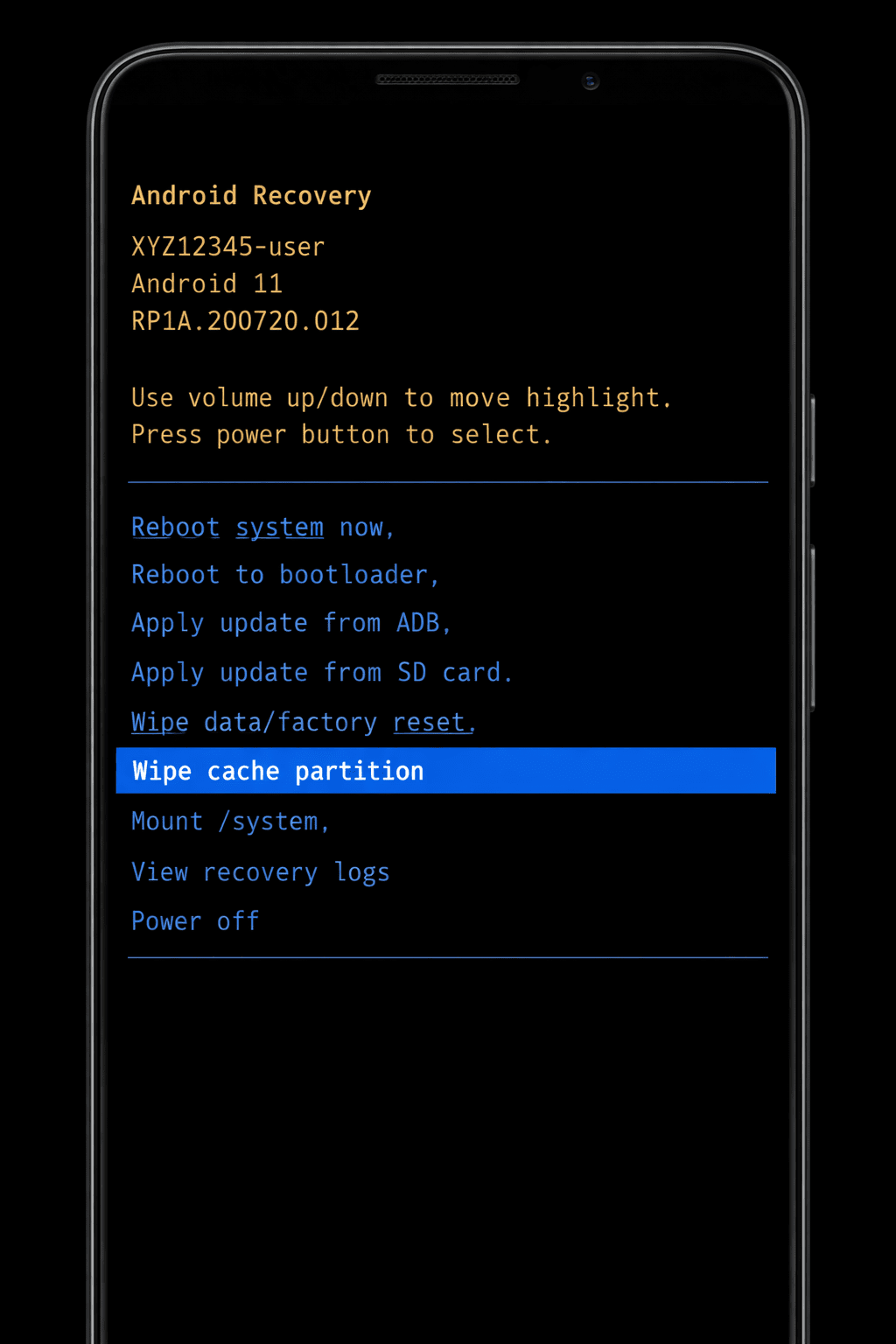
Step 2: Wipe Cache Partition (Recommended First Fix)
This fixes most corrupted cache cases.
How to Wipe Cache Partition
- Power off device.
- Hold Power + Volume Up (or device-specific combo).
- Enter Recovery Mode.
- Select Wipe Cache Partition.
- Confirm.
- Reboot system.
Why This Works
It deletes temporary system files without touching:
- Photos
- Messages
- Apps
- Internal storage
If the issue was cache-related, boot should complete normally.
Step 3: Boot Into Safe Mode
Safe Mode disables third-party apps.
If the device boots successfully:
- A recently installed app is causing the issue.
- Uninstall recent apps.
- Restart normally.
Step 4: Factory Reset (Use Only If Needed)
If wiping cache fails:
- Enter Recovery Mode.
- Select Wipe data / Factory reset.
- Confirm.
⚠ Warning: This deletes all user data.
This fixes severe system corruption but not kernel-level damage.
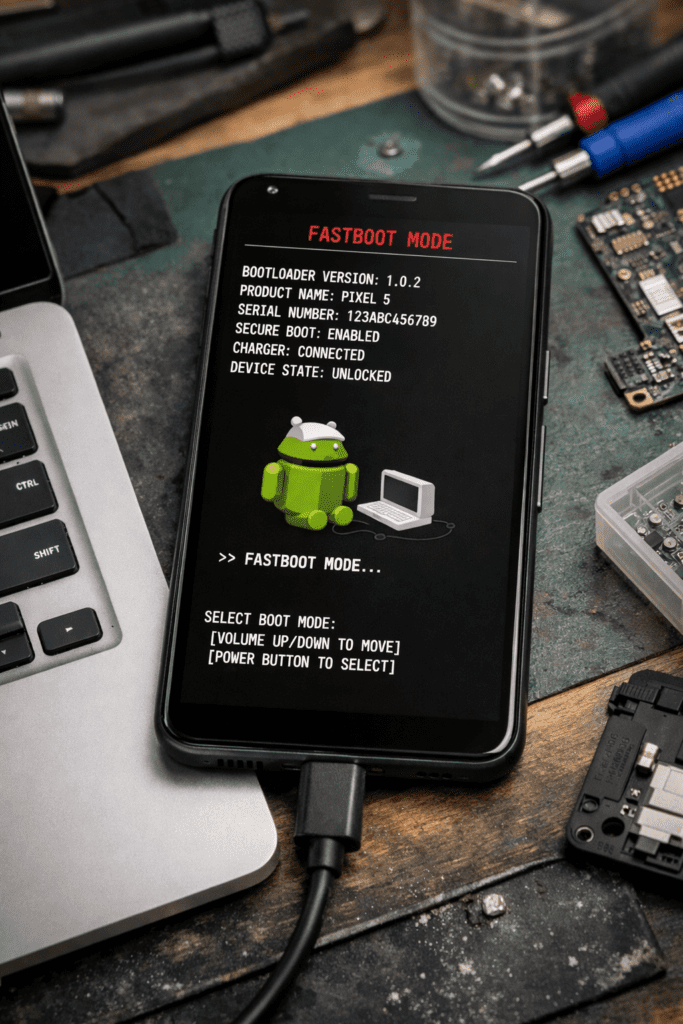
Step 5: Flash Official Firmware (Kernel Panic Fix)
If factory reset fails, kernel corruption is likely.
You must reinstall firmware.
Detailed flashing guides and device-specific recovery procedures are frequently documented by the Android development community.XDA Developers firmware flashing guides
Tools Required
- Manufacturer flashing tool
- Official firmware file
- USB cable
- PC
Examples:
- Samsung: Odin
- Xiaomi: Mi Flash Tool
- Google Pixel: Fastboot commands
Reinstalling firmware replaces:
- Boot image
- Kernel
- System partition
This resolves most kernel panic cases.
When to Use ADB Commands
Advanced users can try:
adb logcat
adb reboot recovery
fastboot flash boot boot.img
Use only if:
- Bootloader is unlocked.
- You understand flashing risks.
- You have correct firmware version.
Incorrect flashing can permanently brick the device.
Data Loss Risk Analysis
| Fix Method | Data Risk |
|---|---|
| Force Restart | None |
| Wipe Cache | None |
| Safe Mode | None |
| Factory Reset | Total Data Loss |
| Flash Firmware | Usually Total |
Always attempt cache wipe first.
Preventing Future Boot Loops
- Keep at least 20% storage free.
- Avoid interrupting OTA updates.
- Do not flash unofficial ROMs casually.
- Avoid low-quality root tools.
- Keep battery above 50% during updates.
- Back up regularly (Google Drive or local PC).
Statistics show that low storage significantly increases update failure rates because system partitions require temporary expansion during installation.
Frequently Asked Questions
1. Can a corrupted cache partition fix itself?
Rarely. Manual wiping is required in most cases.
2. Will wiping cache delete my photos?
No. Cache partition does not store personal data.
3. How do I know if my phone is hard bricked?
If it shows no sign of power, vibration, or charging response.
4. Is kernel panic common after OTA updates?
It’s uncommon. Cache corruption is far more frequent.
5. Can overheating cause boot animation freeze?
Yes. Thermal shutdown during update can corrupt system files.
6. Is flashing firmware safe?
Safe if using official files and correct procedure.
7. Should I go to a service center?
If firmware flashing fails or device shows hardware symptoms.
Key Takeaways
- Most boot animation freezes are caused by corrupted cache.
- Wipe cache partition first before factory reset.
- Kernel panic usually involves system modification or bad firmware.
- Flashing official firmware resolves deep system corruption.
- Data backup is critical before advanced fixes.
Conclusion
When your Android is stuck on boot animation, don’t assume the worst.
In most cases, it’s simply a corrupted cache partition — a quick recovery-mode fix away from normal operation.
Kernel panic is more serious, but still recoverable with proper firmware flashing.
Start safe. Diagnose carefully. Escalate only when needed.
The difference between panic and precision is understanding what’s actually happening under the hood.
Schema-Ready FAQ Section (Clean Format)
Q1: What causes Android to get stuck on boot animation?
A: Common causes include corrupted cache partition, failed OTA updates, kernel panic, incompatible custom ROMs, and insufficient storage during updates.
Q2: Is wiping cache partition safe?
A: Yes. It deletes temporary system files without affecting personal data such as photos or apps.
Q3: What is kernel panic on Android?
A: Kernel panic is a fatal system error where the Android Linux kernel stops functioning due to critical corruption or incompatibility.
Q4: Can I fix boot loop without factory reset?
A: Yes. Wiping cache partition or booting into safe mode often resolves the issue.
Q5: When should I flash firmware?
A: If cache wipe and factory reset fail, and kernel-level corruption is suspected.
Q6: Will flashing firmware delete my data?
A: In most cases, yes. It replaces system partitions entirely.
Q7: How can I prevent boot animation issues in future?
A: Maintain sufficient storage, avoid interrupting updates, and avoid unstable system modifications.