
Background Apps Closing Automatically, Android Memory Management & OEM Aggression Explained
Background apps closing automatically Android users often report when switching between apps or returning after a few minutes. Apps restart, notifications arrive late, and downloads stop unexpectedly.
Background apps closing automatically is a common problem many users experience. Apps restart when switching tasks, notifications arrive late, and downloads stop unexpectedly.Messaging apps stop syncing, music players pause, and downloads fail.
This problem is not always caused by low RAM or faulty apps. In many cases, the real cause is Android’s memory management system combined with aggressive OEM battery optimization policies.
Manufacturers like Xiaomi, Samsung, OnePlus, Vivo, and Huawei often modify Android’s behavior to force-close background processes, aiming to save battery and improve performance. Unfortunately, these modifications sometimes break Android’s normal multitasking behavior.
In this guide, we will explain:
- Why Android closes background apps
- How Android memory management actually works
- Why OEMs aggressively kill apps
- How to stop apps from closing automatically
- Practical fixes that actually work
By the end of this article, you’ll understand exactly why apps are closing and how to stop it.
Table of Contents
- Why Background Apps Close Automatically on Android
- How Android Memory Management Works
- OEM Aggression: Why Manufacturers Kill Background Apps
- Signs Your Phone Is Killing Apps Aggressively
- How to Stop Apps from Closing Automatically
- Advanced Fixes for Persistent App Killing
- How Developers Try to Bypass OEM Restrictions
- FAQs
- Key Takeaways
- Conclusion
Why Background Apps Closing Automatically Android Happens
When an app closes itself unexpectedly, it usually means the system removed it from memory.
Common causes include:
- Low available RAM
- Battery optimization settings
- Aggressive OEM power management
- Background process limits
- System performance tuning
Android is designed to automatically free RAM when needed. However, some manufacturers push this behavior further by killing apps much earlier than necessary.
For example:
- Xiaomi MIUI aggressively closes background services
- Huawei EMUI terminates apps within minutes
- Samsung One UI limits inactive apps
- Vivo and Oppo restrict background tasks heavily
According to a study published by DontKillMyApp, several Android manufacturers modify Android’s background management so aggressively that important apps like alarms, messaging apps, and health trackers stop functioning properly.
How Android Memory Management Works
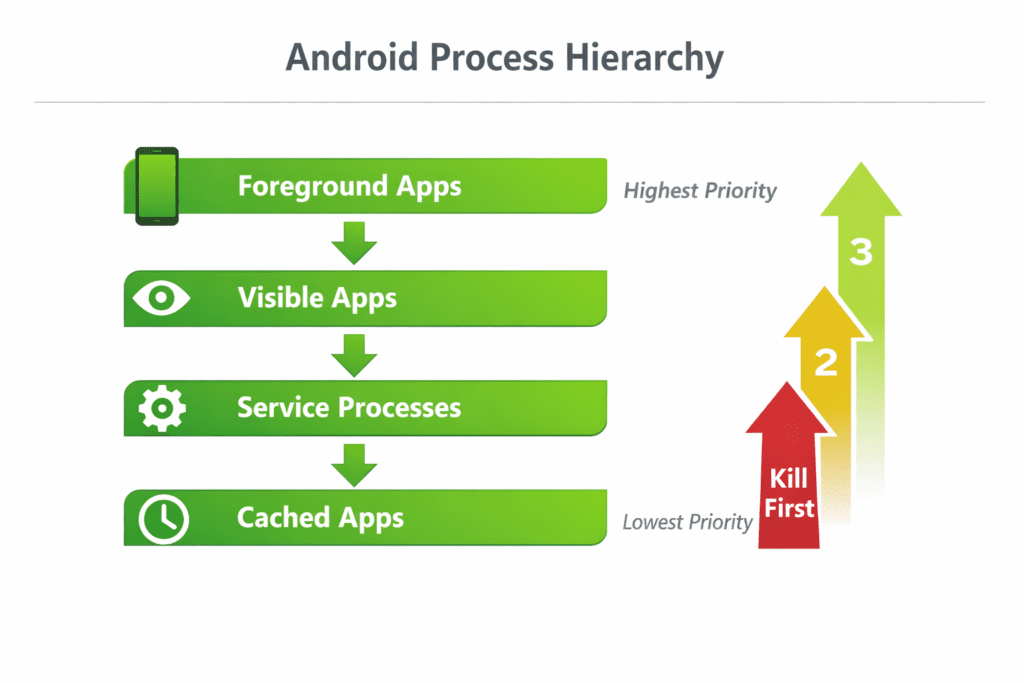
To understand why apps close automatically, you need to understand Android’s process hierarchy.
Android assigns every running app a priority level based on what the user is doing.
1. Foreground Apps
These are apps you are currently using.
Examples:
- The app visible on screen
- Active music player with notification
- Ongoing video calls
These apps are never killed unless memory is extremely low.
2. Visible Apps
Apps partially visible on screen.
Examples:
- Split-screen apps
- Floating windows
These have high priority but can still be removed under heavy memory pressure.
3. Service Processes
Apps running tasks in the background.
Examples:
- Music streaming
- File uploads
- Messaging sync
These can be removed if the system requires memory.
4. Cached Processes
Apps that are not active but stored in RAM for quick reopening.
Examples:
- Recently used apps
- Social media apps
- News apps
These are the first processes Android removes when RAM is needed.
Android’s Low Memory Killer (LMK)
Android uses a system called Low Memory Killer to manage RAM.
When memory usage increases:
- Cached apps are removed
- Background services are stopped
- Visible processes may be removed
- Foreground apps are the last to be killed
Modern Android versions now use LMKD (Low Memory Killer Daemon) which dynamically monitors memory pressure.
Android officially explains its background process and memory management behavior in the Android Developers documentation, which describes how the system prioritizes foreground, service, and cached processes.
OEM Aggression: Why Manufacturers Kill Background Apps
Stock Android already manages RAM efficiently. However, manufacturers often modify the system to prioritize battery life over multitasking.
These modifications include:
- Custom task killers
- Background app limits
- Forced service shutdown
- Deep sleep modes
Manufacturers do this to improve battery benchmarks.
For example:
- A phone with aggressive app killing may gain 10–20% longer battery life in testing.
- However, it can break background syncing and notifications.
Some OEM systems kill apps within 5–10 minutes of inactivity, even if plenty of RAM is available.
This behavior leads to problems like:
- Alarm apps failing
- Fitness tracking stopping
- Messaging notifications delayed
- Music players stopping
According to research from DontKillMyApp, several smartphone manufacturers implement aggressive background process restrictions that can break notifications, alarms, and background services.
Signs Your Phone Is Killing Apps Aggressively
You may notice the following symptoms.
Apps Restart Every Time You Open Them
Instead of resuming where you left off, apps reload completely.
Notifications Arrive Late
Messaging apps may deliver notifications 10–20 minutes late because the background service was killed.
Music or Podcasts Stop Randomly
Streaming apps may stop playback when the system removes them.
Fitness Tracking Stops
Step trackers and health monitoring apps stop working in the background.
Downloads Fail
Large downloads may restart because the system kills the app.
If you experience multiple issues like these, your phone is likely using aggressive background restrictions.
How to Stop Apps from Closing Automatically
Fortunately, several solutions can reduce or stop background app killing.
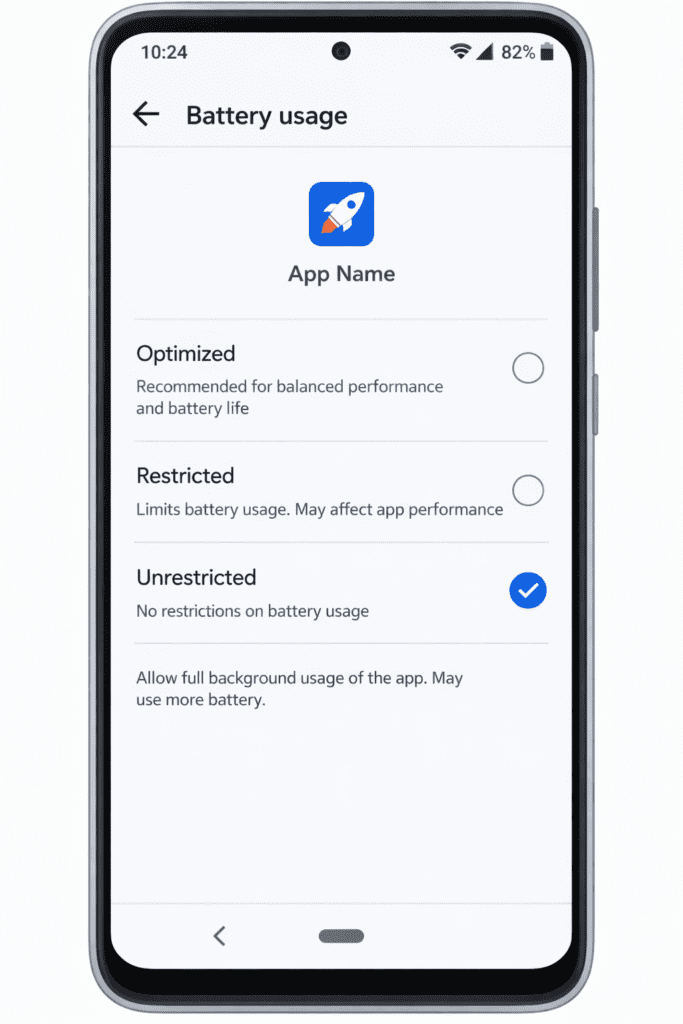
1. Disable Battery Optimization for Important Apps
Android includes battery optimization settings that restrict background processes.
Steps:
- Open Settings
- Go to Battery
- Select Battery Optimization
- Choose the app
- Select Don’t Optimize
This prevents Android from aggressively stopping the app.
2. Lock Apps in Recent Apps Menu
Many manufacturers allow apps to be locked in RAM.
Example (Xiaomi / MIUI):
- Open Recent Apps
- Long press the app
- Tap Lock
This prevents automatic removal.
3. Allow Background Activity
Some phones disable background activity by default.
Steps:
- Open Settings
- Go to Apps
- Select the app
- Tap Battery
- Enable Allow Background Activity
4. Disable Adaptive Battery
Android’s Adaptive Battery may restrict rarely used apps.
Steps:
- Open Settings
- Go to Battery
- Disable Adaptive Battery
This may slightly reduce battery life but improves multitasking.
5. Remove App Sleep Restrictions (Samsung)
Samsung automatically puts apps to sleep.
Steps:
- Open Settings
- Tap Battery and Device Care
- Open Background Usage Limits
- Remove the app from Sleeping Apps
Advanced Fixes for Persistent App Killing
If basic fixes don’t work, try these deeper solutions.
Enable Developer Options Background Limit
- Open Settings
- Tap About Phone
- Tap Build Number seven times
- Open Developer Options
- Find Background Process Limit
Set it to Standard Limit.
If the limit is set lower, Android will kill apps faster.
Disable System Optimization Features
Some phones include:
- Smart Battery Manager
- Intelligent Power Saving
- Ultra Battery Saver
Disable these features to reduce aggressive killing.
Keep Apps Updated
Developers frequently update apps to comply with newer Android background policies.
Apps targeting newer Android versions use:
- Foreground services
- WorkManager tasks
- Push notification services
Updating apps can improve reliability.
Reset App Preferences
If system settings are misconfigured:
- Open Settings
- Go to Apps
- Tap Reset App Preferences
This restores default behavior.
How Developers Try to Bypass OEM Restrictions
Developers constantly battle aggressive background restrictions.
Modern Android apps use techniques like:
- Foreground services for persistent tasks
- Firebase Cloud Messaging for notifications
- WorkManager API for scheduled tasks
- JobScheduler for background processing
However, OEM modifications sometimes override these systems, making it difficult for developers to maintain consistent background behavior.
This is why many developers recommend checking DontKillMyApp, which tracks manufacturer background restrictions.
FAQs
Why do Android apps restart when switching between them?
This usually happens when the system removes apps from RAM to free memory. OEM battery optimizations often make this behavior more aggressive.
Do phones with more RAM still close apps?
Yes. Even phones with 8–12 GB RAM can kill apps due to aggressive battery management policies.
Which Android manufacturers kill apps the most?
Studies show that Xiaomi, Huawei, Oppo, and Vivo tend to implement the most aggressive background restrictions.
Does disabling battery optimization affect battery life?
Yes, slightly. Allowing apps to run freely may reduce battery life by 5–10%, but improves reliability.
Can third-party task killers fix the issue?
No. Task killer apps usually make the problem worse by forcing apps to restart more frequently.
Why do messaging notifications arrive late?
This often happens when the system kills the background service responsible for receiving push notifications.
Key Takeaways
- Android automatically manages RAM using priority levels.
- Cached apps are removed first when memory pressure increases.
- Many manufacturers aggressively kill apps to improve battery benchmarks.
- Battery optimization settings are the most common cause of background app closures.
- Disabling optimization and allowing background activity usually fixes the issue.
- Developer tools and system settings can help reduce aggressive app killing.
Conclusion
Background apps closing automatically on Android is not always a hardware limitation. In many cases, it results from aggressive battery and memory management policies implemented by device manufacturers.
While Android’s built-in memory management is designed to keep devices running smoothly, OEM modifications often push these systems too far, sacrificing multitasking reliability for battery performance.
The good news is that most of these issues can be fixed through simple settings adjustments, such as disabling battery optimization, allowing background activity, and managing adaptive battery features.
Understanding how Android manages memory helps you take control of your device and ensure the apps you rely on stay active when you need them most.
Schema-Ready FAQ Answers
Q1: Why are background apps closing automatically Android devices?
Android apps usually close automatically because the system removes them from memory to free RAM or save battery. Modern Android devices also include battery optimization features that restrict background activity for inactive apps. Additionally, many smartphone manufacturers modify Android with aggressive power-saving systems that terminate background apps quickly. This behavior helps improve battery life but can cause apps to restart when reopened.
Q2: How does Android memory management work?
Android manages memory using a process priority hierarchy. Apps currently in use (foreground apps) receive the highest priority, while inactive apps are stored as cached processes in RAM. When the system needs more memory, Android removes cached apps first, then background services, and finally visible apps. This process is controlled by the Low Memory Killer Daemon (LMKD), which dynamically frees memory to keep the system responsive.
Q3: Why do manufacturers kill background apps aggressively?
Many smartphone manufacturers implement aggressive background app restrictions to improve battery life and performance benchmarks. By limiting how long apps can run in the background, devices consume less power and appear more efficient during testing. However, these modifications often interfere with Android’s standard multitasking system, leading to issues such as delayed notifications, music stopping, or apps restarting frequently.
Q4: How can I stop apps from closing in the background?
You can reduce background app closures by adjusting a few system settings:
- Disable battery optimization for important apps
- Enable allow background activity in app settings
- Remove apps from sleeping or restricted app lists
- Lock apps in the recent apps menu (available on some devices)
- Disable aggressive power-saving features like Adaptive Battery
These changes allow apps to remain active longer in the background.
Q5: Does disabling battery optimization help?
Yes. Disabling battery optimization allows an app to run more freely in the background without being restricted by Android’s power management system. This can prevent apps from restarting or losing background services such as notifications or music playback. However, it may slightly reduce battery life because the app is allowed to use more system resources.
Q6: Why are my notifications delayed on Android?
Delayed notifications usually occur when Android or the device manufacturer’s power management system kills the background service responsible for receiving push notifications. Messaging apps like WhatsApp, Gmail, or Telegram rely on background processes to receive updates. If these processes are stopped, notifications may only appear when the app is reopened or the device wakes from sleep.