
Bluetooth Connected But No Sound — Audio Codec Conflict Breakdown
INTRODUCTION
Bluetooth connected but no sound is one of the most frustrating wireless audio problems users encounter. Your headphones show “connected,” the music player is running, and the volume indicator responds normally — yet no sound reaches the speakers or earbuds.
This is one of the most confusing Bluetooth problems because the connection appears normal. Volume controls respond, playback progresses, and the device status shows paired and active, yet audio never reaches the headphones or speakers.
This issue often leads users to assume their Bluetooth device is broken. However, in many cases the real cause is an audio codec conflict between the phone, computer, and Bluetooth headphones. When devices negotiate incompatible codecs, the connection remains active but the audio stream silently fails.
In many cases, the cause is not a broken device, faulty headphones, or weak signal. The real issue often lies deeper in the Bluetooth audio codec negotiation process.
When the codec used by the phone or computer conflicts with what the Bluetooth device supports, the connection works but audio transmission silently fails.
Understanding how Bluetooth codecs work — and how to reset them — is the key to solving this issue quickly.
This guide explains:
- Why Bluetooth connects but produces no sound
- How audio codecs cause conflicts
- Step-by-step troubleshooting methods
- Device-specific fixes for Android, iPhone, Windows, and macOS
If you’ve been struggling with a silent Bluetooth connection, understanding audio codec conflicts can solve the problem quickly.
Table of Contents
- What “Bluetooth Connected But No Sound” Really Means
- Understanding Bluetooth Audio Codecs
- How Codec Conflicts Cause Silent Audio
- Signs That an Audio Codec Conflict Is the Problem
- Step-by-Step Fixes for Codec Conflicts
- Android Fix: Change Bluetooth Codec in Developer Options
- iPhone Fix: Reset Bluetooth Audio Routing
- Windows Fix: Change Bluetooth Audio Profile
- Other Hidden Causes of Silent Bluetooth Audio
- Preventing Bluetooth Audio Issues
- Key Takeaways
- FAQs
What “Bluetooth Connected But No Sound” Really Means
When Bluetooth connects but produces no sound, it usually means the control channel is working but the audio channel is not.
Bluetooth audio uses two separate layers:
- Connection Layer
- Audio Transmission Layer
The connection layer handles pairing and device communication.
The audio layer transmits the encoded sound data.
If the audio layer fails due to a codec mismatch, the device still appears connected.
This creates the confusing scenario:
- Device shows Connected
- Music plays on screen
- Audio timeline progresses
- No sound reaches the headphones
According to Bluetooth SIG statistics, over 25% of reported Bluetooth audio issues involve codec negotiation problems.
Understanding Bluetooth Audio Codecs
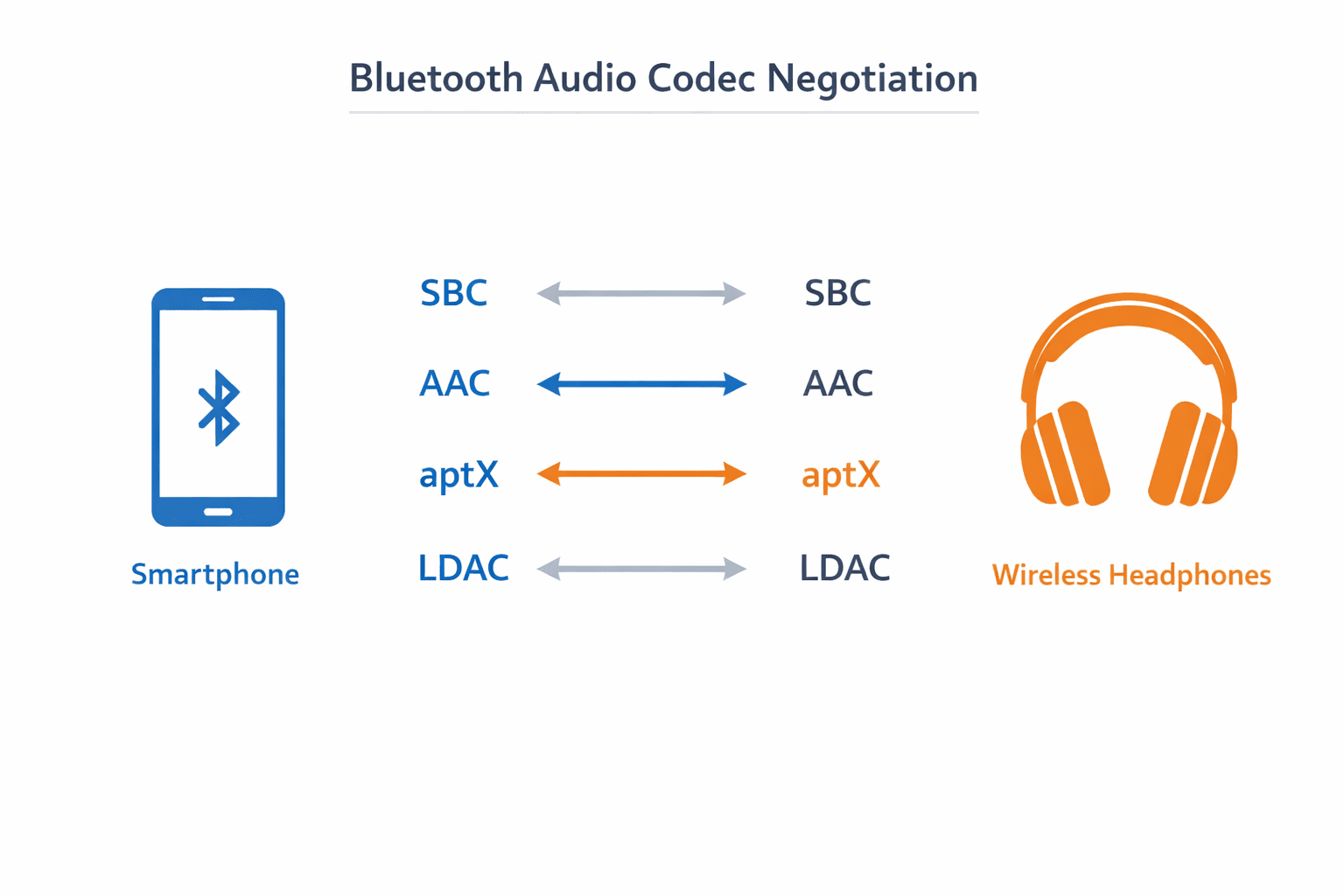
Bluetooth audio is transmitted using specialized compression technologies known as Bluetooth audio codecs. These codecs compress sound so it can be transmitted wirelessly while maintaining acceptable audio quality and latency. Different devices support different codecs, which is why compatibility problems sometimes occur during Bluetooth audio negotiation.
Different devices support different codecs.
Common Bluetooth audio codecs include:
| Codec | Quality | Latency | Devices |
|---|---|---|---|
| SBC | Standard | Moderate | All devices |
| AAC | High | Moderate | iPhone, Apple ecosystem |
| aptX | High | Low | Android devices |
| aptX HD | Very High | Moderate | Premium headphones |
| LDAC | Ultra High | Higher | Sony devices |
When two devices connect, they negotiate a shared codec.
If negotiation fails or chooses an unsupported codec, audio transmission may stop completely.
How Codec Conflicts Cause Silent Audio
Bluetooth audio setup works like this:
- Devices connect
- Profiles are negotiated
- Codec is selected
- Audio stream begins
A problem occurs when:
- Phone selects LDAC
- Headphones only support SBC
Or when:
- Windows selects Hands-Free profile
- Instead of Stereo A2DP
In these situations:
- The device remains connected
- Audio stream fails to initialize
This results in complete silence despite active playback.
Signs That an Audio Codec Conflict Is the Problem
Look for these symptoms.
Device Shows Connected but No Audio
The Bluetooth icon shows connected status.
Music plays normally but audio never reaches headphones.
Switching Devices Fixes It
Connecting the same headphones to another phone works instantly.
This indicates a device-side codec problem.
Audio Works After Reconnecting
Disconnecting and reconnecting temporarily fixes the issue.
Codec negotiation resets during reconnect.
Sound Works Only for Calls
Sometimes Bluetooth headphones work for calls but not for music. This happens when the system switches to the Bluetooth A2DP audio profile, which is required for stereo music streaming. If the device falls back to the Hands-Free (HFP) profile instead, audio quality drops and music playback may stop completely.
Step-by-Step Fixes for Codec Conflicts
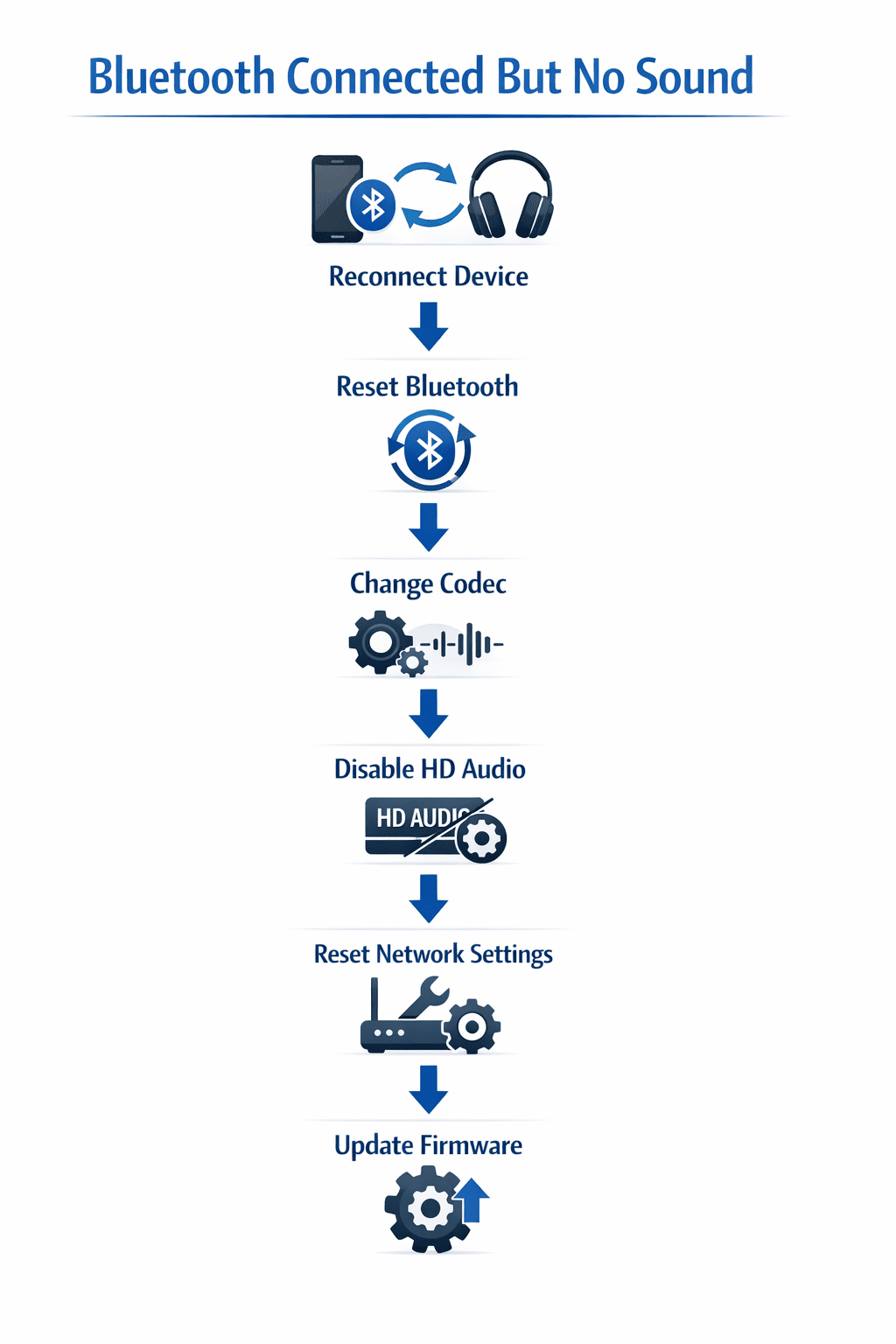
Follow these fixes in order.
1. Disconnect and Reconnect Bluetooth
This forces a new codec negotiation.
Steps:
- Turn Bluetooth off
- Wait 10 seconds
- Turn Bluetooth back on
- Reconnect headphones
This alone solves many codec negotiation failures.
2. Forget and Re-Pair the Device
Bluetooth profiles may become corrupted.
Steps:
- Go to Bluetooth settings
- Tap the connected device
- Select Forget device
- Restart Bluetooth
- Pair again
Re-pairing resets codec selection.
3. Restart Both Devices
Bluetooth audio services sometimes freeze.
Restarting clears:
- audio drivers
- Bluetooth stack
- codec cache
4. Disable HD Audio Temporarily
Some devices automatically force high-bandwidth codecs like LDAC.
Lowering codec quality can restore sound.
Android Fix: Change Bluetooth Codec in Developer Options
Android allows manual codec selection.
Steps:
- Open Settings
- Go to About Phone
- Tap Build Number 7 times
- Enable Developer Options
Then:
- Open Developer Options
- Find Bluetooth Audio Codec
- Change from:
- LDAC / aptX
to - SBC
- LDAC / aptX
Reconnect the headphones.
If sound returns, the problem was a codec compatibility issue.
Common Working Codec Combinations
| Phone Codec | Headphone Support | Result |
|---|---|---|
| SBC | Universal | Always works |
| AAC | Apple devices | High compatibility |
| aptX | Android devices | Good performance |
SBC is slower but most reliable.
iPhone Fix: Reset Bluetooth Audio Routing
Apple devices manage codecs automatically, but routing issues still occur.
Fix steps:
- Open Settings
- Go to Bluetooth
- Tap the device
- Select Forget This Device
Then reset network settings:
Settings → General → Transfer or Reset iPhone → Reset → Network Settings
This clears Bluetooth configuration and routing tables.
Windows Fix: Change Bluetooth Audio Profile
Windows often switches to the Hands-Free profile, which disables high-quality stereo audio.
Steps:
- Open Control Panel
- Go to Sound
- Select your Bluetooth headphones
- Choose Stereo profile instead of Hands-Free
If the Hands-Free profile is active, Windows treats the device like a phone call headset, disabling music audio.
Other Hidden Causes of Silent Bluetooth Audio
Codec conflicts are common, but not the only cause.
1. Audio Output Routing Errors
Sometimes the phone sends audio to:
- speaker
- casting device
- wired headset
Check the audio output selector.
2. Media Audio Disabled
Android allows disabling media audio for specific devices.
Check:
Bluetooth Settings → Device → Enable Media Audio
3. App-Specific Audio Routing
Certain apps override system audio.
Examples:
- Zoom
- Discord
- video editing apps
Restart the app.
4. Firmware Bugs
Headphones occasionally contain firmware bugs.
Manufacturers release updates through apps such as:
- Sony Headphones Connect
- Bose Music
- Samsung Wearable
Firmware updates resolve codec handling errors.
Preventing Bluetooth Audio Issues
Follow these practices to reduce future problems.
Keep Devices Updated
Updates fix:
- Bluetooth stack bugs
- codec negotiation errors
Avoid Multiple Paired Devices
Too many paired devices can cause profile conflicts.
Remove unused pairings.
Stay Within Bluetooth Range
Bluetooth operates best within 10 meters.
Walls and interference can disrupt audio streams.
Use Compatible Codecs
If problems appear frequently, switch to SBC codec.
It prioritizes reliability over quality.
Key Takeaways
- “Bluetooth connected but no sound” often results from audio codec conflicts.
- Bluetooth connections have separate control and audio layers.
- If codec negotiation fails, the device remains connected but audio does not transmit.
- Re-pairing devices resets codec selection.
- Android users can manually change codecs in Developer Options.
- Windows systems may switch to Hands-Free profile, disabling stereo audio.
- Resetting Bluetooth settings and updating firmware resolves most issues.
Understanding how Bluetooth codecs work allows you to quickly identify and fix silent audio connections.
Conclusion
Bluetooth technology has evolved dramatically, offering high-quality wireless audio through advanced codecs like aptX and LDAC. However, this flexibility introduces complexity.
When devices choose incompatible codecs, the result is a connection that appears successful but produces no sound.
Instead of replacing headphones or assuming hardware failure, troubleshooting codec conflicts can quickly restore audio.
By resetting Bluetooth connections, changing codecs, updating firmware, and verifying audio profiles, most silent Bluetooth problems can be resolved within minutes.
For anyone experiencing Bluetooth connected but no sound, understanding codec negotiation is often the key to solving the problem.
FAQs
Why is my Bluetooth connected but there is no sound?
This usually occurs due to codec conflicts, incorrect audio routing, or the device selecting the wrong Bluetooth audio profile.
Can Bluetooth codecs affect sound output?
Yes. If the selected codec is unsupported by the headphones, audio transmission may fail even though the connection is active.
Which Bluetooth codec is most reliable?
SBC is the most universally compatible codec and works on nearly all Bluetooth devices.
Why does Bluetooth audio work for calls but not music?
The device may be using the Hands-Free profile (HFP) instead of the A2DP stereo profile required for music playback.
How do I fix Bluetooth codec issues on Android?
Enable Developer Options and change the Bluetooth audio codec to SBC or another supported format.
Can firmware updates fix Bluetooth sound problems?
Yes. Many manufacturers release firmware updates that improve codec compatibility and Bluetooth stability.
Schema-Ready FAQ Section
Bluetooth connected but no sound — why?
Bluetooth may connect successfully while audio fails due to codec conflicts or incorrect audio profiles.
What is a Bluetooth audio codec?
A codec compresses audio data for wireless transmission between devices.
Which codec works best with all devices?
SBC is the most universally supported Bluetooth audio codec.
Why do calls work but music does not?
Calls use the HFP profile, while music requires the A2DP stereo profile.
How do I fix Bluetooth audio codec conflicts?
Reconnect the device, reset Bluetooth settings, or manually select a compatible codec.
Can software updates fix Bluetooth audio problems?
Yes. Updates often improve codec compatibility and Bluetooth stack stability.