Google Play Store “Download Pending” — Network Handshake Failure Deep Analysis 2026
Few Android issues are as frustrating as opening the Google Play Store, tapping “Install,” and seeing nothing happen except one stubborn message: Download Pending.The Google Play Store Download Pending error is one of the most frustrating issues Android users encounter when installing apps.
No error code. No progress. Just silence.
Behind this seemingly simple message lies a complex interaction between your device, Google servers, network routing layers, and system-level services. In many cases, the real cause is a network handshake failure — a breakdown in the secure connection between your device and Google’s content delivery infrastructure.
This guide goes beyond quick fixes. It explains what’s happening technically, why it happens, and how to permanently resolve it.
Table of Contents
- Understanding the “Download Pending” Problem
- What Is a Network Handshake Failure?
- Common Root Causes
- Step-by-Step Fixes (Basic to Advanced)
- Router-Level & DNS Troubleshooting
- System-Level Android Debugging
- Enterprise / School Network Issues
- When the Problem Is on Google’s Side
- Key Takeaways
- FAQs
- Schema-Ready FAQ Section
Understanding the “Download Pending” Problem
The “Download Pending” message appears when the Play Store queues your request but fails to initiate the download process.
In normal conditions, here’s what happens when you tap Install:
- Device sends request to Google Play servers.
- Google authenticates your account.
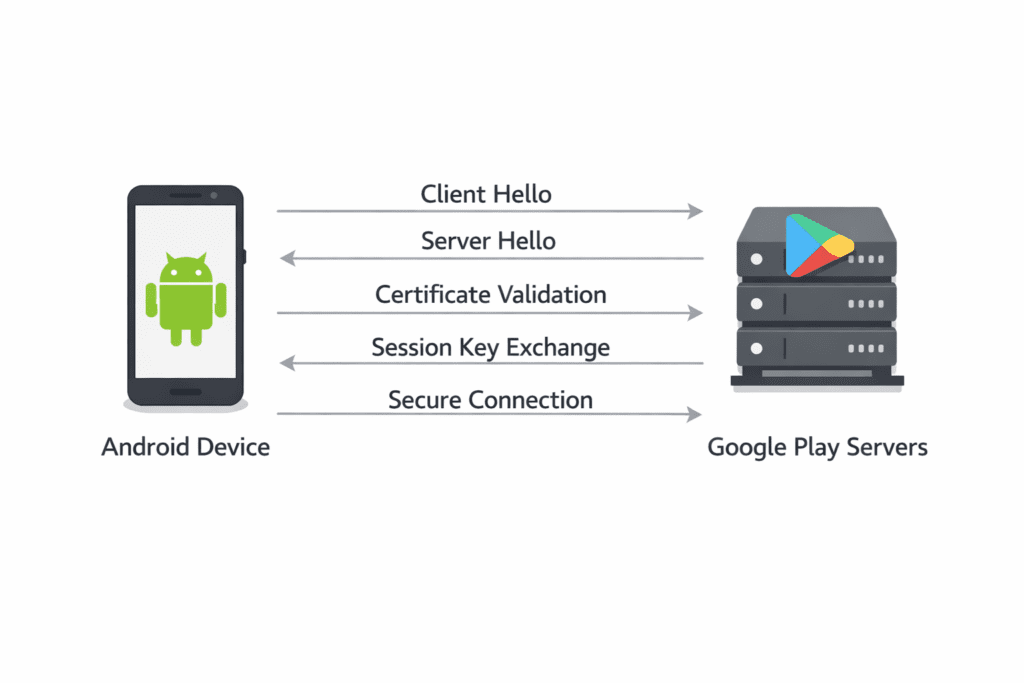
- Secure TLS handshake is established.
- Device receives download token.
- App download begins via Google CDN.
If step 3 fails — the secure handshake — the process stalls.
According to global Android usage data, Android powers over 70% of smartphones worldwide. Even a 1% handshake failure rate affects millions of users daily.
What Is a Network Handshake Failure?
A network handshake is the secure negotiation between your device and Google’s servers before data transfer begins.
During this process:
- Encryption protocols are negotiated (TLS/SSL).
- Certificates are validated.
- Session keys are generated.
- Data transfer parameters are defined.
If any of these fail, the Play Store cannot proceed.
Common failure points:
- DNS misconfiguration
- Packet filtering by firewall
- VPN interference
- Corrupted Google Play Services
- System time mismatch
- Network congestion
Primary Causes of “Download Pending” on Play Store
1. Stuck Download Queue
If another app update is pending, the Play Store blocks new downloads.
2. Corrupted Google Play Cache
Temporary files may prevent handshake completion.
3. DNS Resolution Failure
Your ISP may fail to resolve Google domains correctly.
4. VPN or Proxy Blocking Google CDN
Some VPN endpoints block or throttle Google servers.
5. Firewall / Router-Level Filtering
Enterprise routers may block required ports (443).
6. Device Storage Fragmentation
Low or unstable storage interrupts token generation.
7. Date & Time Mismatch
TLS certificate validation fails if system time is incorrect.
Step-by-Step Solutions (From Simple to Advanced)
Follow these in order.
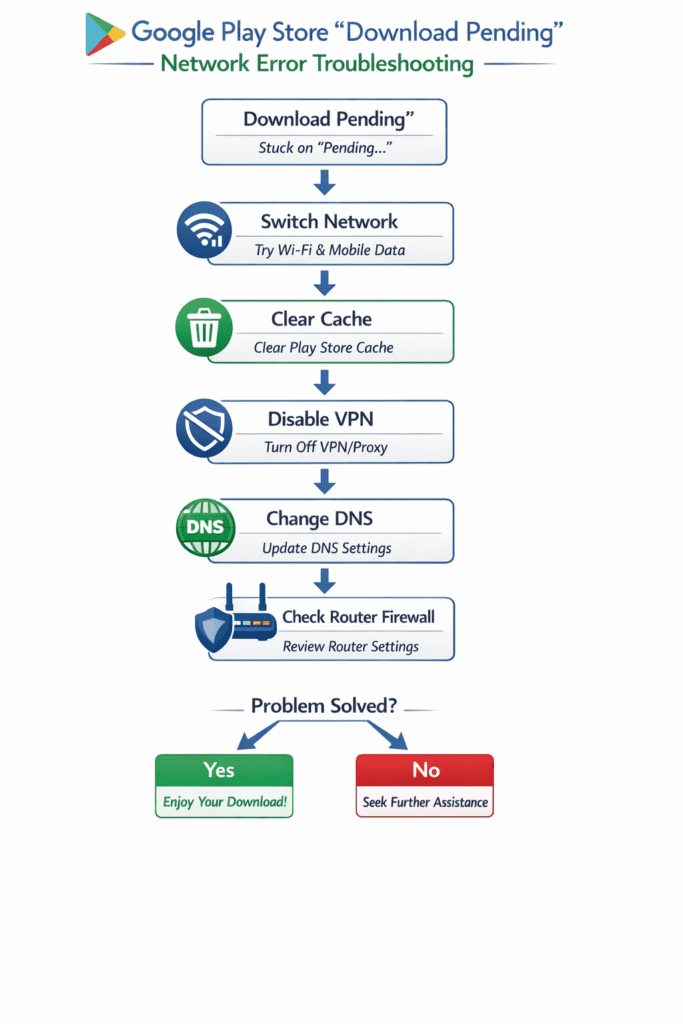
1. Cancel Stuck Downloads
- Open Play Store
- Tap profile icon → Manage apps & device
- Cancel all pending downloads
- Restart device
Test again.
2. Clear Google Play Cache & Data
- Go to Settings
- Apps → Google Play Store
- Storage & Cache
- Clear Cache
- Clear Storage
- Force Stop
Repeat for:
- Google Play Services
- Download Manager
Reboot device.
3. Switch Network (Handshake Isolation Test)
- Turn off Wi-Fi
- Use mobile data
- Or switch to a different Wi-Fi network
If it works on mobile data but not Wi-Fi, the issue is router-level.
4. Disable VPN / Private DNS
If using:
- VPN
- Ad blockers
- Private DNS (like dns.adguard.com)
Disable temporarily and test again.
Handshake failures commonly occur due to:
- TLS interception
- Packet rewriting
- Region-based CDN mismatch
If your ISP DNS is unstable, switching to Google Public DNS can improve domain resolution reliability and help the Play Store connect properly.
5. Change DNS to Google DNS
Handshake problems often stem from DNS resolution delays.
Change DNS to:
Primary: 8.8.8.8
Secondary: 8.8.4.4
On Android:
Settings → Network → Private DNS
Set to: dns.google
Restart and test.
6. Check Date & Time
TLS certificates require accurate time.
Enable:
Settings → Date & Time → Automatic date & time
Even a few minutes’ drift can cause validation errors.
7. Reset App Preferences
Settings → Apps → Reset app preferences
This restores:
- Disabled system apps
- Background restrictions
- Permission blocks
Google also recommends checking your connection, clearing Play Store cache and data, and re-adding your account when app downloads get stuck.
Advanced Network Handshake Diagnostics
For users comfortable with deeper troubleshooting:
Check Router Firewall Settings
Ensure:
- Port 443 (HTTPS) is open
- No outbound restrictions
- No content filtering blocking Google domains
Google Play uses:
- play.googleapis.com
- android.clients.google.com
If blocked, downloads stall.
Test Packet Loss
High packet loss interrupts TLS negotiation.
Use:
- Ping test from another device
- Network diagnostic apps
If packet loss exceeds 2–3%, handshake instability increases significantly.
Flush Router Cache
Power off router for 5 minutes.
This refreshes:
- NAT tables
- Session tokens
- ISP routing
System-Level Android Debugging
If the issue persists:
Update Google Play Services Manually
Outdated Play Services can cause handshake errors.
Install latest version from:
APKMirror (trusted mirror)
Remove and Re-Add Google Account
- Settings → Accounts
- Remove Google account
- Restart device
- Add account again
This refreshes authentication tokens.
Boot in Safe Mode
Safe Mode disables third-party apps.
If downloads work in Safe Mode, a background app is interfering.
Common culprits:
- Firewall apps
- VPN apps
- Network monitors
- Battery optimization tools
When the Issue Is on Google’s Side
Sometimes the problem is not yours.
Google server outages can cause handshake delays.
Check:
- Google Workspace Status Dashboard
- Downdetector
If there’s a global outage, waiting is the only solution.
Key Takeaways
- “Download Pending” often signals a TLS handshake failure.
- DNS and VPN issues are common causes.
- Router firewall filtering can silently block downloads.
- Clearing Play Store cache resolves many token errors.
- System time mismatch breaks certificate validation.
- Testing on mobile data isolates network issues.
Frequently Asked Questions
Why does Google Play say Download Pending but nothing downloads?
Because the secure connection handshake fails before the download token is issued. Network or DNS issues are common causes.
Does VPN cause Download Pending?
Yes. VPNs can block or reroute Google CDN traffic, interrupting TLS negotiation.
Can low storage cause this error?
Yes. If storage is nearly full, the Play Store may fail before initiating the download process.
Why does it work on mobile data but not Wi-Fi?
Your router firewall or ISP DNS is likely blocking required Google domains.
Does changing DNS fix Play Store errors?
Often yes. Switching to Google DNS improves domain resolution reliability.
Is Download Pending a Google server issue?
Occasionally. Checking outage trackers helps confirm.
Conclusion
The Google Play Store “Download Pending” message is rarely random. It is usually the visible symptom of a deeper network handshake failure.
By understanding how your device negotiates secure connections with Google’s servers, you can troubleshoot systematically instead of guessing.
Start with cache clearing.
Isolate network variables.
Move to DNS adjustments.
Then check router-level filtering.
Once the handshake succeeds, downloads resume instantly.
Schema-Ready FAQ Section (Clean Format)
Q1: Why does Google Play Store show Download Pending?
A: It usually indicates a failed TLS handshake or network connection issue preventing download initiation.
Q2: How do I fix Download Pending on Android?
A: Clear Play Store cache, disable VPN, switch networks, and update Google Play Services.
Q3: Can DNS settings affect Play Store downloads?
A: Yes. Incorrect or slow DNS resolution can prevent secure connection establishment.
Q4: Does incorrect date and time cause this problem?
A: Yes. TLS certificate validation fails if device time is inaccurate.
Q5: Is this issue related to Google server outages?
A: Sometimes. Checking Google’s status dashboard helps confirm.
Q6: Why does Play Store work on mobile data but not Wi-Fi?
A: Your router firewall, DNS, or ISP filtering may block Google Play traffic.