
OTA Update Failed? Partition Verification & Storage Fragmentation Causes
INTRODUCTION
Over-the-air (OTA) updates are designed to make smartphone upgrades seamless. With a single tap, your device downloads new security patches, bug fixes, and features. But many users experience a frustrating message during installation: “OTA update failed.”
In many cases, the failure is not due to a bad internet connection or server issues. Instead, deeper system-level problems—such as partition verification errors or storage fragmentation—can interrupt the update process.
Modern Android systems use strict security mechanisms to verify partitions before installing updates. If the device detects modified system files, corrupted partitions, or fragmented storage blocks, the update process halts to prevent system damage.
This guide explains:
- Why OTA updates fail
- How partition verification works
- How storage fragmentation interferes with updates
- Practical troubleshooting steps to fix the issue
By the end of this article, you will know exactly how to diagnose and resolve OTA update failures safely.
Table of Contents
- Understanding OTA Updates
- What Happens During an OTA Installation
- Why OTA Updates Fail
- Partition Verification Errors Explained
- Storage Fragmentation and Update Failures
- Common Symptoms of These Problems
- How to Fix OTA Update Failures (Step-by-Step)
- Advanced Fixes for Persistent Errors
- Preventing Future OTA Update Issues
- Key Takeaways
- FAQs
- Conclusion
Understanding OTA Updates
OTA (Over-the-Air) updates allow manufacturers to push new firmware directly to devices without requiring manual installation.
Typical updates include:
- Android version upgrades
- Security patches
- Bug fixes
- Performance improvements
- New system features
According to Android’s official security bulletins, Google releases monthly security updates covering over 100 vulnerabilities on average each year. OTA updates ensure devices remain protected.
Instead of downloading a full firmware package every time, modern updates often use incremental patching. This means the system updates only modified files rather than reinstalling the entire OS.
However, incremental updates require exact system integrity, which is why partition verification becomes critical.
What Happens During an OTA Installation
Before exploring failures, it is important to understand the update process.
OTA update process
- Device downloads update package.
- System verifies package signature.
- Update reboots into recovery environment.
- Partition verification begins.
- Patch files are applied to system partitions.
- Device reboots with updated firmware.
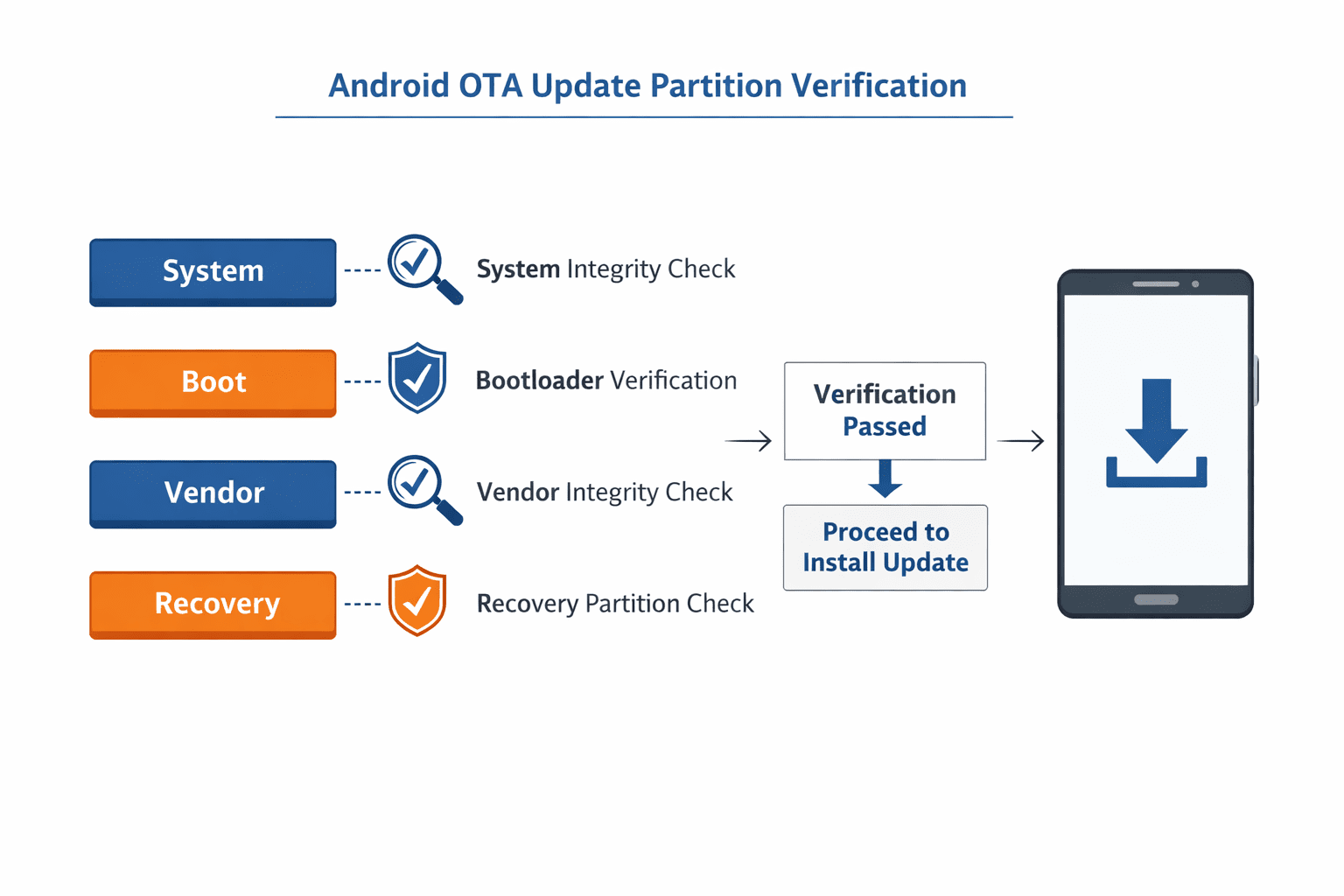
Key partitions involved include:
- System partition
- Vendor partition
- Boot partition
- Recovery partition
- User data partition
If any of these partitions fail verification or cannot be patched properly, the update installation stops.
Why OTA Updates Fail
There are several reasons OTA updates may fail.
Common causes
- Modified system files
- Root access
- Corrupted partitions
- Storage fragmentation
- Insufficient free storage
- Interrupted downloads
- Failed cryptographic verification
However, two major technical causes frequently overlooked are:
- Partition verification failure
- Storage fragmentation
These are the focus of this guide.
Partition Verification Errors Explained
Android uses a security framework called Verified Boot, which ensures the device boots only trusted system software.
Verified Boot ensures the device only loads authentic system software. During OTA installation, the update system checks whether system partitions match expected cryptographic signatures.
If verification fails, installation stops.
Why verification fails
Partition verification errors occur when:
- System files were modified
- Rooting tools changed system binaries
- Custom ROMs were installed
- Bootloader modifications occurred
- System partition became corrupted
Even minor changes—such as deleting a system app—can break OTA updates.
Example error messages
Common update logs include:
- “Partition verification failed”
- “System partition mismatch”
- “Installation aborted”
These messages indicate that the update cannot safely apply patches.
Storage Fragmentation and Update Failures
Another hidden cause of OTA failure is storage fragmentation.
Fragmentation occurs when files are stored in scattered blocks across storage rather than contiguous segments.
Why fragmentation matters for OTA updates
OTA updates often require temporary storage blocks to unpack update files.
If the storage system cannot allocate large continuous blocks, update installation may fail.
Fragmented storage causes problems such as:
- insufficient contiguous storage
- patch application failures
- corrupted unpacked update files
Although modern file systems reduce fragmentation, it can still occur after years of use.
Signs of severe storage fragmentation
- OTA installation stops midway
- Device storage shows free space but updates fail
- Slow system performance
- App installation errors
Studies show storage fragmentation can reduce device performance by up to 15–25% in heavily used systems.
Common Symptoms of OTA Update Failures
Users experiencing partition or fragmentation problems may notice the following:
Installation errors
- Update fails at 20–50% progress
- Installation aborted message
- Device reboots without installing update
Device behavior
- Repeated update attempts
- Update downloaded but not installed
- Device stuck in recovery mode
Log errors
Advanced users checking logs may see:
E:failed to verify system partitionUpdate package verification failedError applying patch
How to Fix OTA Update Failures (Step-by-Step)
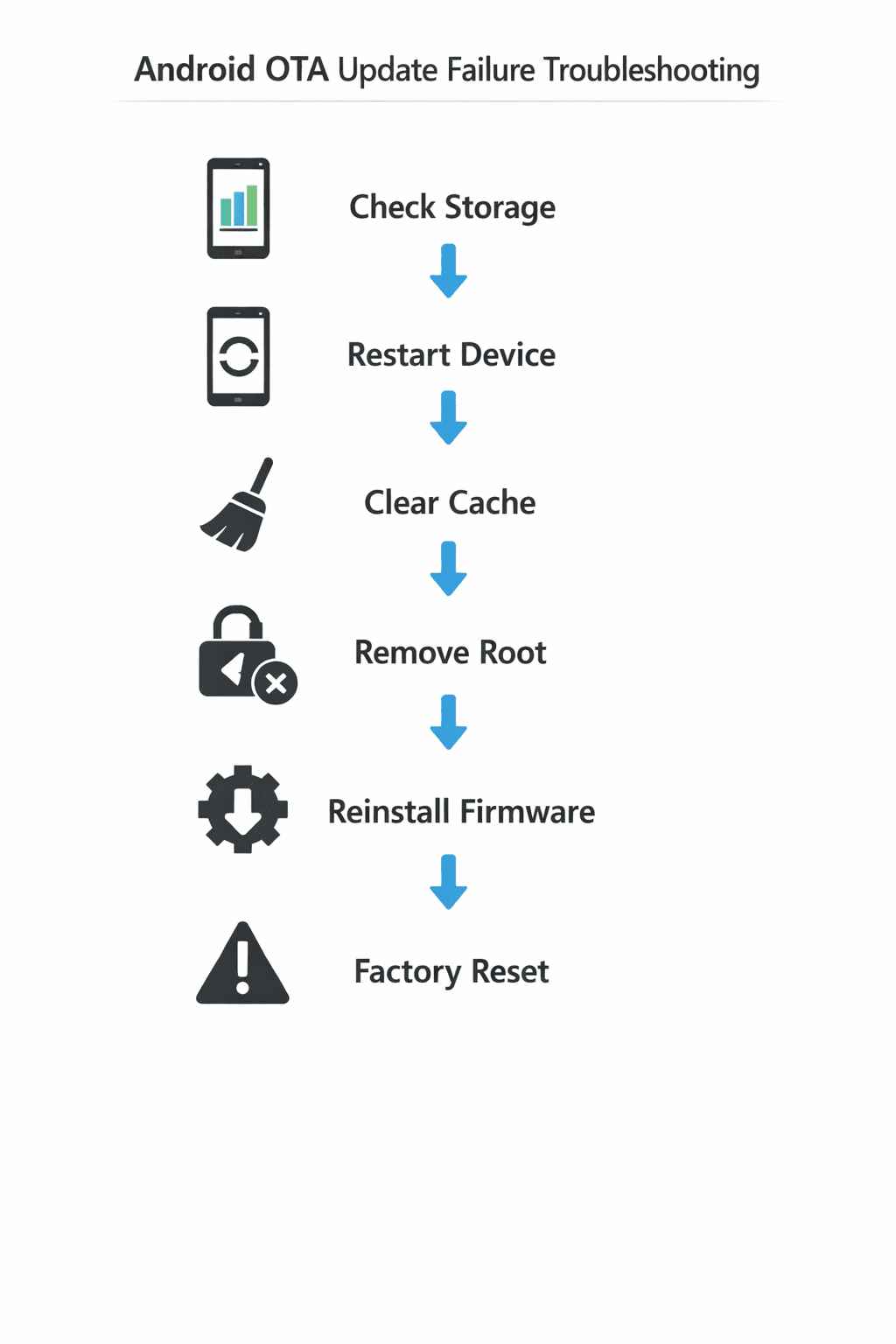
The solution depends on the underlying cause. Start with basic fixes before moving to advanced steps.
1. Restart the Device
Sometimes update processes fail due to temporary system glitches.
Steps:
- Restart your phone.
- Clear background apps.
- Attempt the OTA update again.
2. Ensure Enough Storage Space
OTA updates often require 2–3× the update package size in free space.
Recommended:
- At least 5–10 GB free storage
Steps:
- Delete unused apps
- Clear media files
- Remove cached downloads
3. Clear System Cache
Temporary files can interfere with update installation.
Steps:
- Boot into Recovery Mode
- Select Wipe Cache Partition
- Restart device
- Retry update
This does not delete personal data.
4. Remove Root Access
If the device is rooted, OTA updates may fail.
Possible fixes:
- Unroot the device
- Restore original boot image
- Remove system modifications
5. Reinstall System Updates
If incremental OTA fails, install a full firmware package.
Steps:
- Download official firmware
- Use manufacturer update tool
- Install full update manually
This bypasses partition mismatch issues.
Advanced Fixes for Persistent Errors
If the problem persists, deeper system repair may be required.
Reflash Stock Firmware
Reflashing restores the device to factory firmware.
Steps:
- Download official firmware package.
- Install device flashing tool.
- Boot device into fastboot mode.
- Flash stock system partitions.
This resolves partition verification errors.
Factory Reset
If fragmentation or system corruption is severe, a reset may help.
Steps:
- Backup important data.
- Go to Settings → System → Reset
- Select Factory Data Reset
This clears storage structure and removes fragmentation issues.
Use Recovery Update
Some devices allow update installation directly through recovery mode.
Steps:
- Download OTA package manually.
- Move file to device storage.
- Boot into recovery mode.
- Select Install Update from Storage.
Preventing Future OTA Update Issues
Once the problem is fixed, following best practices helps avoid future failures.
Best practices
- Avoid modifying system partitions
- Keep at least 10 GB storage free
- Install updates regularly
- Avoid installing incompatible root tools
- Maintain system backups
Regular updates ensure security patches install correctly.
Key Takeaways
- OTA updates require verified system partitions.
- Modified system files often cause partition verification failures.
- Storage fragmentation can prevent update installation.
- Most issues can be fixed by clearing cache, freeing storage, or reinstalling firmware.
- Advanced fixes include reflashing stock firmware or factory reset.
FAQs
Why does my OTA update keep failing?
OTA updates fail due to system modification, corrupted partitions, insufficient storage, or fragmented storage blocks.
Can rooting a phone break OTA updates?
Yes. Rooting modifies system partitions, which often causes partition verification errors during OTA updates.
How much storage is needed for OTA updates?
Most updates require 2–3× the update package size, typically 5–10 GB free storage.
Does factory reset fix OTA update problems?
Yes, in many cases. Factory reset removes storage fragmentation and corrupted system files.
Can OTA updates fail because of slow internet?
Slow internet may interrupt downloads, but installation failures are usually caused by system or storage issues.
Is it safe to manually install firmware?
Yes, if downloaded from official sources. Manual firmware installation can fix OTA update errors.
Conclusion
OTA updates are essential for maintaining smartphone security, stability, and performance. However, when the update process encounters partition verification errors or storage fragmentation, installation can fail unexpectedly.
Understanding how Android verifies system partitions and allocates storage helps diagnose these issues quickly. In most cases, simple steps like clearing cache, freeing storage, or removing root access resolve the problem.
For persistent errors, reinstalling official firmware or performing a factory reset restores system integrity.
Keeping your device updated and avoiding unauthorized system modifications will ensure OTA updates install smoothly in the future.
Schema-Ready FAQ List
What causes OTA update failure on Android?
OTA update failure can occur due to partition verification errors, insufficient storage, system modification, corrupted update files, or storage fragmentation.
How do I fix a failed OTA update?
You can fix it by restarting the device, clearing cache partition, freeing storage space, removing root modifications, or reinstalling official firmware.
Can storage fragmentation stop OTA updates?
Yes. Fragmented storage can prevent the system from allocating required contiguous storage blocks needed during update installation.
Does rooting affect OTA updates?
Rooting modifies system partitions, which often leads to verification errors and OTA update failures.
Is factory reset necessary to fix OTA update errors?
Not always. It is usually a last resort when cache clearing or firmware reinstallation does not resolve the issue.
Hey provide me 1 focus keyword for rankmath and also provide title slug and dis according to that focus keywords. Also give image alt text according to that focus keyword …